Expiry policies can be used to check for activity or inactivity of Teams and Sites managed in ProvisionPoint.
Only one expiry policy can be added to a Service Definition
If you want to automatically update the expiry date based on activity or inactivity, a Lifecycle Policy must be applied to the Service Definition.
- Are you looking to check on activity or inactivity or both?
- What does inactivity/activity mean: chats in Team channels, access to the Site or modification to files on the Site?
- Do you want to update the expiry date based on the inactivity or activity results?
- Will the checks need to run from the creation date or a specific number of days before expiry?
- Which rules are the most important?
- Will all rules (defining activity/inactivity) need to be met before a change will happen?
Configuration
Create a Ruleset
A Ruleset is a group of rules that will always run together. You may need to separate your rules into rulesets to allow them to be used in multiple compliance policies.
A good reason to do so is if you want to run checks on Teams or SharePoint Sites.
Create a Teams Ruleset and a Site Ruleset to ensure all the bases are covered. Then add either 1 or both to a compliance policy.
Expand to see the Steps
- Go to Admin > Policies > Compliance Policies > Rulesets
- Create a new ruleset, click + New ruleset
- Set a Name & description
- Set the usage type to 'Expiry Compliance Policy'
- Add an Icon
- Enable
- Save - This will be added to your list of rulesets,
- Expand the ruleset to add rules
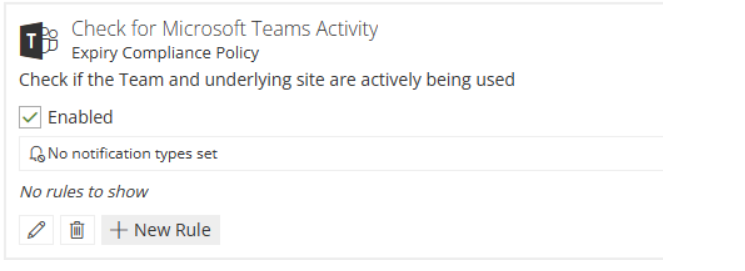
- Repeat for any other Rulesets, for example, Check for Site Activity
-
Rules
Now the ruleset(s) exists you can add rules to each, we recommend
- Starting with a report rule to check your setup works as expected, if will flag workspaces as non-compliant or compliant but make no changes.
- Add notify rules to email owners, admins, others about non-compliance.
- The Set Expiry rule type can only be applied if a lifecycle policy is also applied to the Service Definitions/workspaces.
- These rules will update the expiry date based on the rule setup you choose.
Available Rules, Configuration and conditions: Expand to see options
|
Rule name
|
Details
|
Rule Configuration Options
|
|
Site Last Modified*
|
Checks the last modified date on the site. Covers add, edit and delete actions on items and documents in lists and libraries.
|
- Condition - restrict when the rule will run (optional)
- Duration - less than or more than # of days
|
|
Site Accessed*
|
Checks if the site has been accessed using the activity logs. Covers viewing site pages and documents in libraries.
|
- Condition - restrict when the rule will run (optional)
- Duration - has or has not been accessed # of days
|
|
Site Accessed Daily Counts*
|
Checks the activity logs to get the total number of actions performed on the site along with the total number of users on a daily basis. Covers viewing site pages and documents in libraries.
|
- Condition - restrict when the rule will run (optional)
- Check daily action count - set value for how many times it was accessed (<,>,=)
- Check daily user count - set value for how many different users accessed (<,>,=)
- Duration - has or has not been accessed # of days
|
|
Site Accessed Past Seven Days Count*
|
Checks the activity logs to get the total number of actions performed on the site along with the total number of users over the past seven days. Covers viewing site pages and documents in libraries.
|
- Condition - restrict when the rule will run (optional)
- Check total action count - set value for how many times it was accessed (<,>,=)
- Check total user count - set value for how many different users accessed (<,>,=)
- Duration - has or has not been accessed # of days
|
|
Team Channel Activity*
|
|
- Condition - restrict when the rule will run (optional)
- Duration - has or does not have activity # of days
|
|
Delegated
|
Only use if a Lifecycle policy is in place
Sets the expiry date based on the preceding Set Expiry rules. All preceding Set Expiry rules that delegate setting the expiry date must require a resolution for this rule to set the expiry date.
|
- Condition - restrict when the rule will run (optional, but recommended)
- Operation Type -
- Add days + # of days
- Remove days - # of days
- Transform tag - use a Request Variables to calculate the date to set to
|
*For all Set Expiry Rules the operation type option is available:
- Operation Type -
- Add days + # of days
- Remove days - # of days
- Transform tag - use a Request Variables to calculate the date to set to
Conditions can be used to limit when the rule should run. Each schedule will check the conditions, if they match then the rule will run.
- If you plan to extend based on activity it may be best to only apply this for a short time towards the end of the lifecycle.
This is all based on the Expiry Date, if you do not have a lease or lifecycle this should not be used.
Use 'Expiry date < Now.AddDays(30)', will only run in the 30 days before the expiry date. This is useful for activity checks that will auto extend
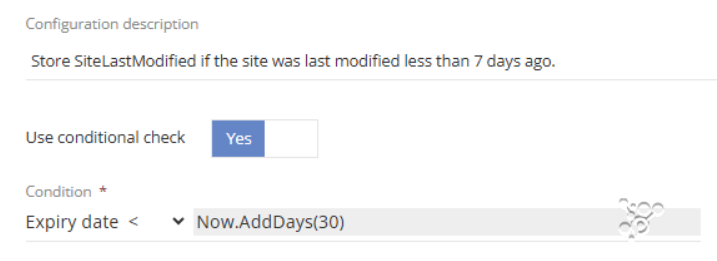
Add a Rule to the Ruleset
- Click +New Rule on the ruleset
- Select the first rule you want to run
- Enable the rule
- Use a conditional check if you want to apply additional conditions on when items should be checked.
If there are no conditions this check will run everytime the policy is scheduled. - Set the other configuration options as explained in the table
- Repeat the + New Rule to add any other rules needed
Create a Compliance Policy
Read how to here Create a Compliance Policy
The compliance policy will
- Set the schedule and which rulesets/rules will be run.
- Define who will receive any notifications from the notify rules.
- Add the Rulesets that will be run
Recommendations for Expiry
- Run checks out of office hours to reduce the load.
- For weekly checks choose the day and time
- If choosing number of days it will be from the date of creation and time
- Choose an icon or leave the default
- Enable the policy to allow it to be selected on a Service Definition
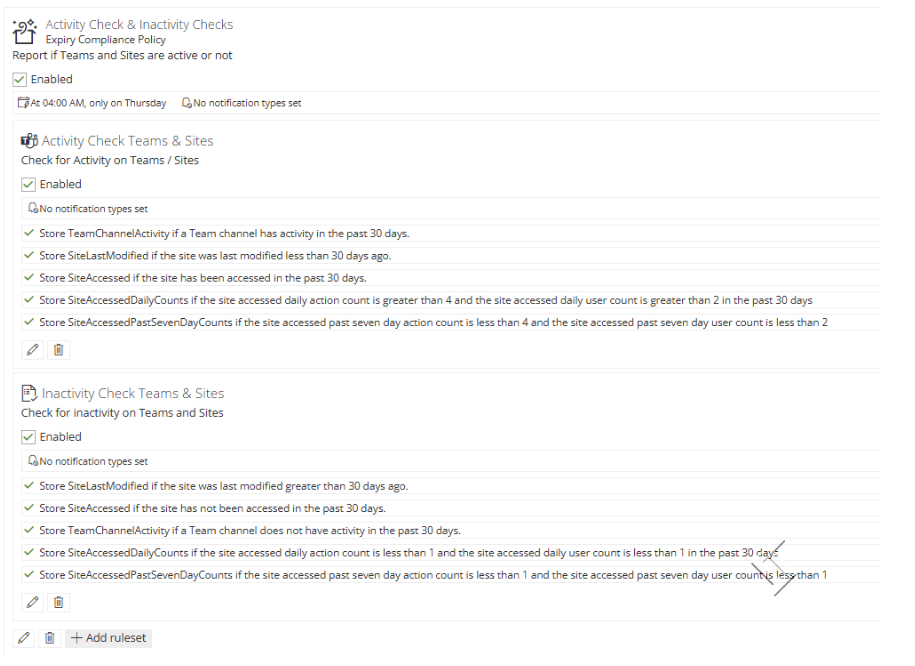
At this point the policy will not run, it must be added to Service Definitions
Link Compliance Checks to a Service Definition
As stated the compliance check will only run once it is linked to a Service Definition or all, this allows you to choose the relevant policies for your Service Definitions.
- Open the Admin > Service Definition > Open the service definition you want to apply to
- Go to the Compliance Tab
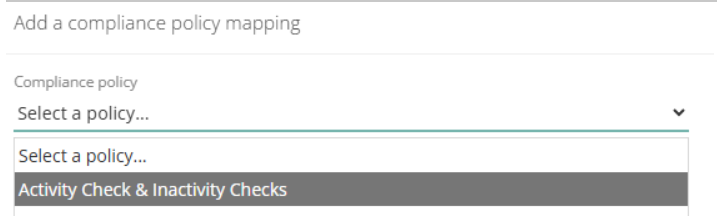
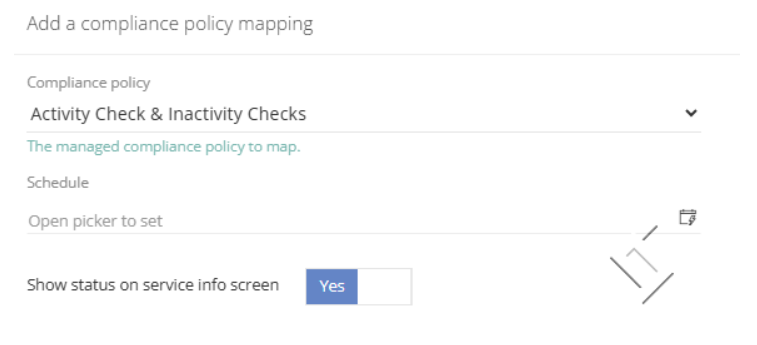
- Select the Policy to run, Click +Add policy - remember only 1 expiry policy can be added
- Schedule
- Can be left blank to use the schedule set on the policy
- Choose a different schedule for each Service Definition - this is useful if you have a lot of service definitions running the checks and a lot of workspaces
- Ensure you set different times for each Service definition to reduce the load
- Show status on service info screen - If set to yes the policy name and last run status will be displayed on the info page.
- Click Save to add to the schedule
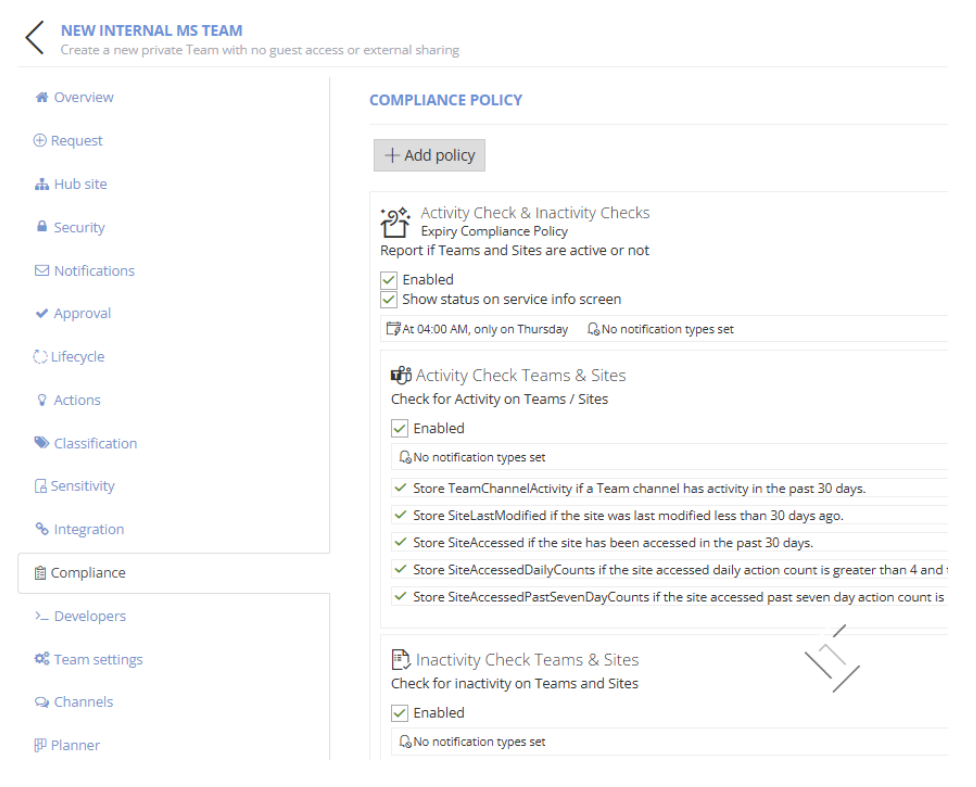
Policies can be deleted or edited, read more in Change the Compliance Policy
We recommend a notification to be set at the Service Definition level to email any failed runs to the relevant groups or people within the organisation.