If you wish to export specific columns to CSV file using Graph API as a data source, follow the step below;
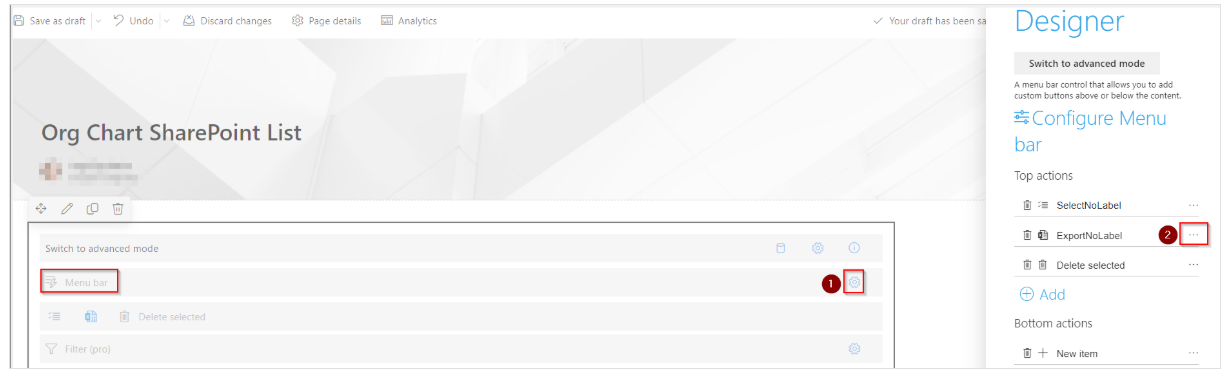
1. Navigate to Menu Bar Configure Control and click on the ellipsis near the ExportNoLable option within the Top Actions section.
2. In the Write your own JavaScript code for this function field, paste the code in the link below;
component.exportCSV(root, component, item, [
{ InternalName: 'dvp_Name', Title: 'Name' },
{ InternalName: 'dvp_Emails', Title: 'Emails' },
{ InternalName: 'dvp_Position', Title: 'jobTitle' },
{ InternalName: 'officeLocation', Title: 'OfficeLocation' },
{ InternalName: 'department', Title: 'Department' },
{ InternalName: 'ManagerName', Title: 'ManagerName' },
{ InternalName: 'dvp_Phones', Title: 'Mobilephone' },
]);
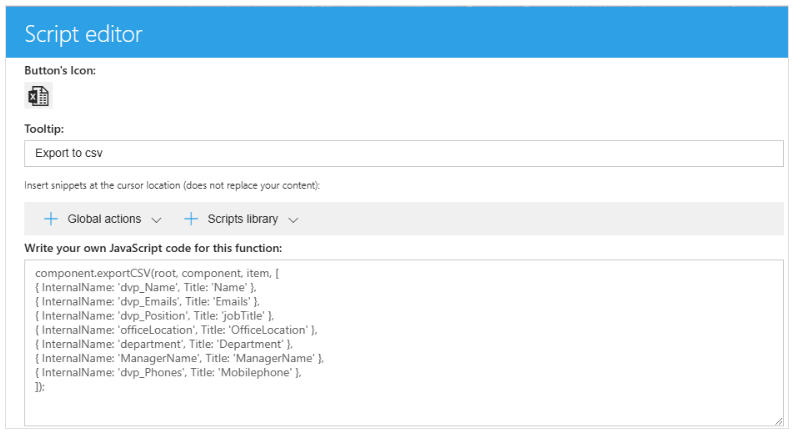
3. The code above specifies the columns to be exported with their corresponding internal names and titles. You can customize the list of columns by adding or removing entries in the array.
IMPORTANT: Internal names should match the exact names of the fields in the Graph API response.
Here is the list of all the columns available in Org Chart Web Part when using Graph API:
| dvp_DataSourceId | dvp_DataSourceName | ManagerName | dvp_DataSourceId |
| dvp_Emails | dvp_Position | dvp_ManagerId | dvp_Name |
| dvp_Phones | dvp_Emails | officeLocation | department |
dvp_ImageUrl
| | | |
4. After following these steps, you will see additional columns have been added when you export to CSV format.
