A HAR (HTTP Archive) file captures web browsing activity and is useful for troubleshooting network-related issues on websites.
Before You Begin:
To ensure the HAR file captures only the relevant activity, please clear your browser's cookies for the affected site before recording.
Clearing Cookies with Developer Tools:
1. Navigate to the webpage where you're encountering the issue.
- Open Developer Tools:
-
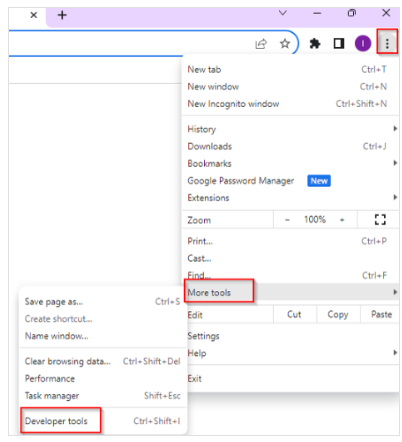
- Click the ellipsis icon (three vertical dots) in the top-right corner of the browser.
- Select More tools > Developer tools.
- Or use the shortcut key F12.
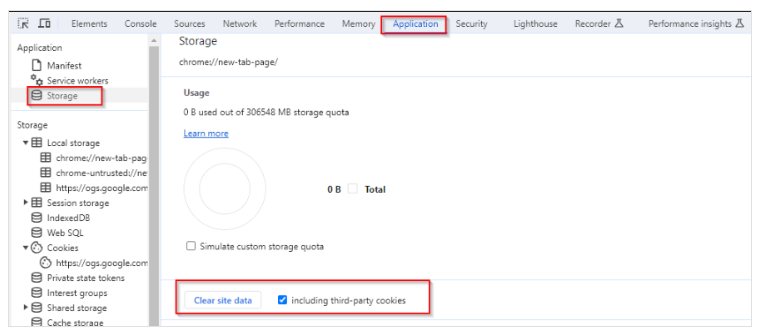
2. In the Developer Tools pane, go to the Application tab.
- In the left-hand panel, under Storage, click Clear site data.
-
- Make sure the "including third-party cookies" option is checked.
After clearing the Storage, follow the steps to record and export the HAR file.
1. Navigate to the webpage where you're encountering the issue.
2. In the top-right corner of the browser window, click on the ellipsis icon (three vertical dots), then navigate to "More tools" > "Developer tools." You can also use the shortcut key F12 to access this.
3. In the Developer tools pane, switch to the "Network" tab.

1. Click "Stop recording network log" and then "Clear" to remove any existing logs. The record icon will turn grey.
2. Click "Record network log" to start recording. The record icon will turn red.
3. Reproduce the issue you are facing on the web page.
4. Once you have reproduced the issue, click "Stop recording network log."
5. Finally, click "Export HAR" (marked with a downward-arrow icon) and save the HAR file to your computer.
