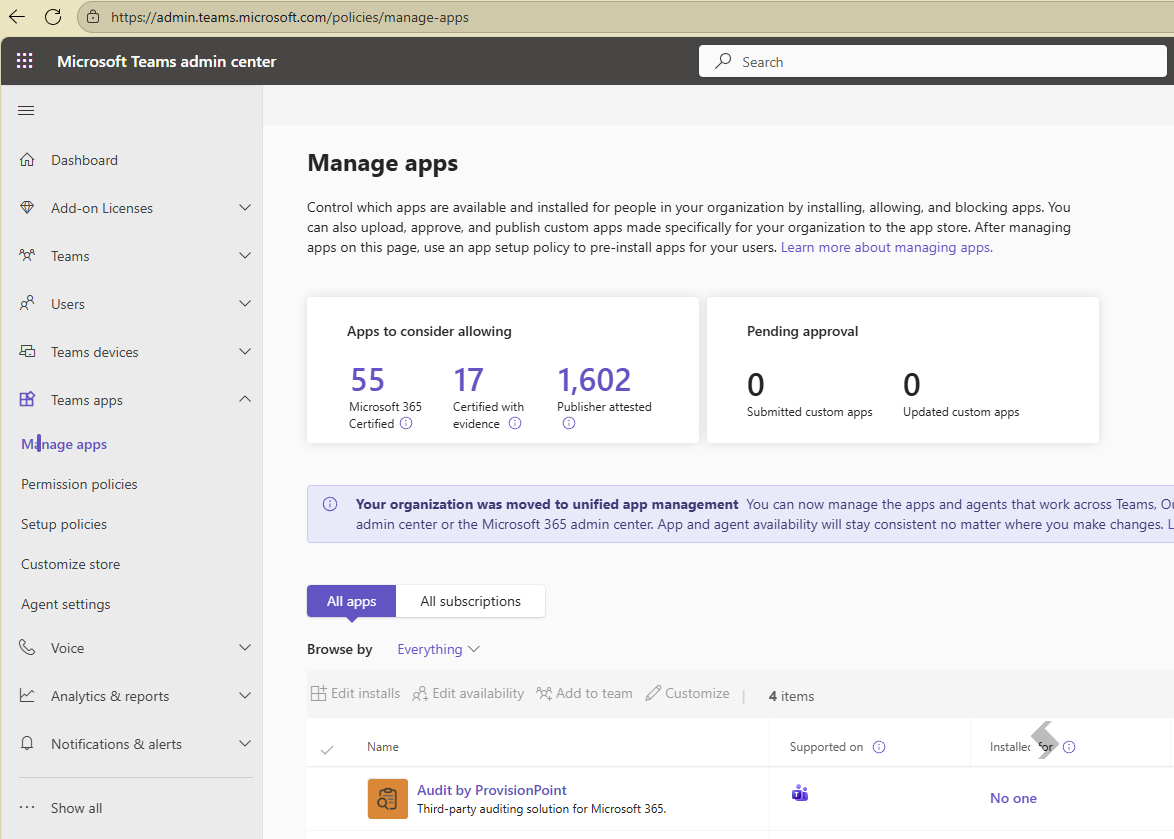
Audit by ProvisionPoint is available via the Microsoft Teams Store. Login as a Global Admin to the Teams Admin Center > Manage Apps > search for Audit
Consent
The Audit by ProvisionPoint app will need to be consented to enable admins and users to run reports.
Consenting the app must be completed by a global admin, but only needs to be completed once.
The Global Admin will need to configure access the consent can be completed via Teams app
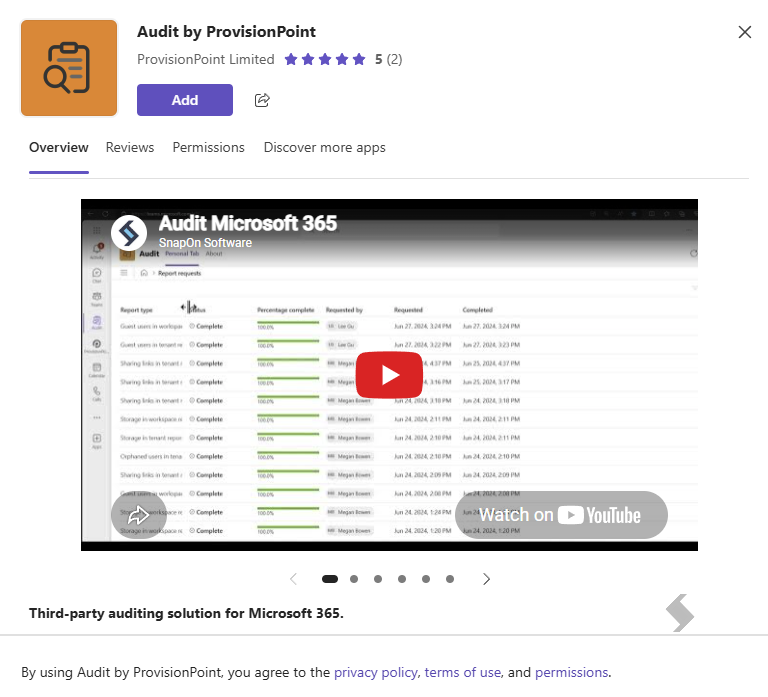
- Login to Teams as the Global Admin account, go to Apps and find the Audit by ProvisionPoint app and 'Add'
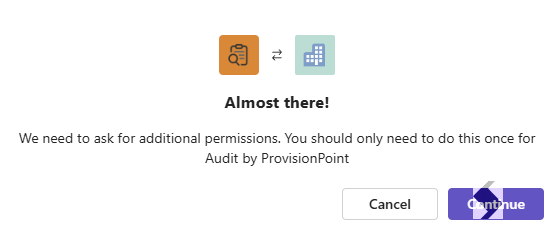
- Additional permissions will be requested, click Continue
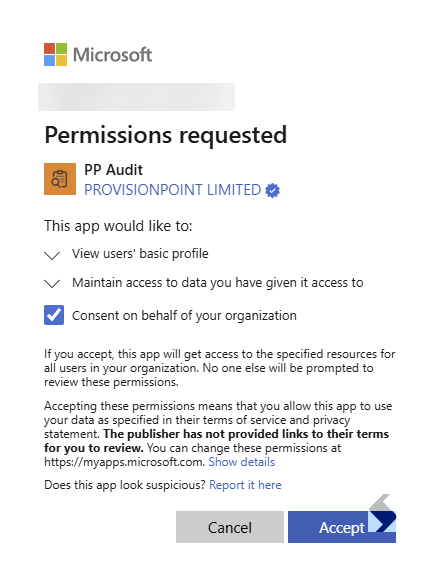
- A pop up will show the initial permissions that will add PP Audit as an Enterprise app to your tenant.
Please enable consent on behalf of your organisation & click 'Accept'
- Next, reopen the Audit by ProvisionPoint app, a welcome screen will be displayed showing the final consent stages
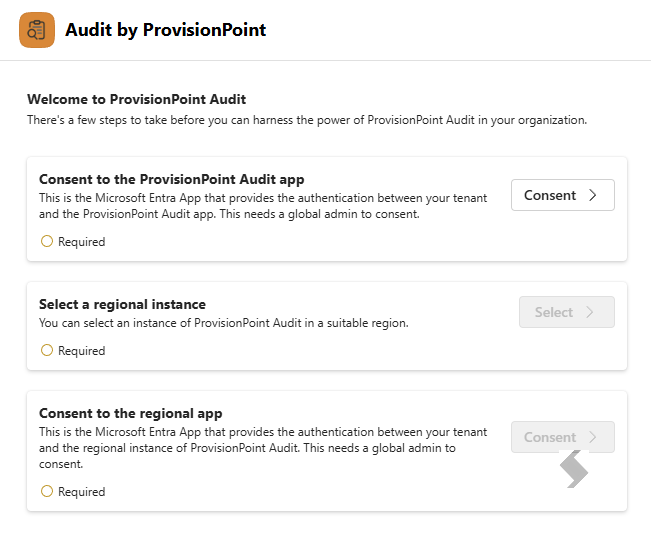
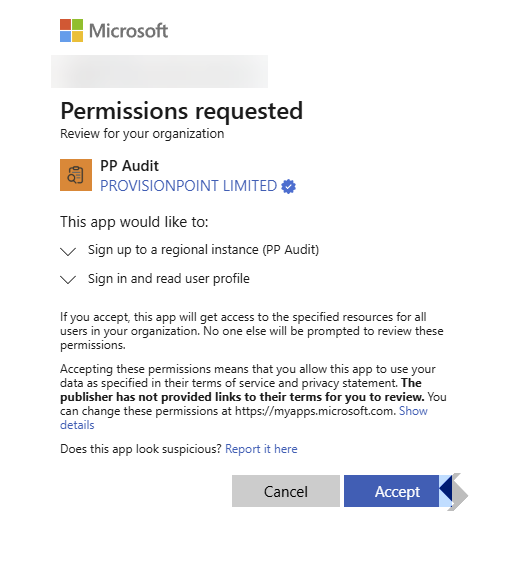
- Click 'Consent to the ProvisionPoint Audit app, this will allow you to signup to a regional instance of the app, click 'Accept'
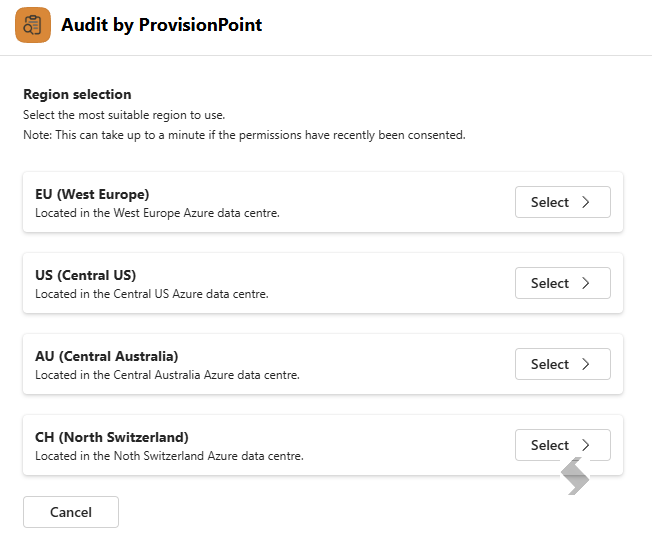
- Next, select a regional instance, you can choose from EU, US, AUD, CH
- Finally, consent to the regional app,
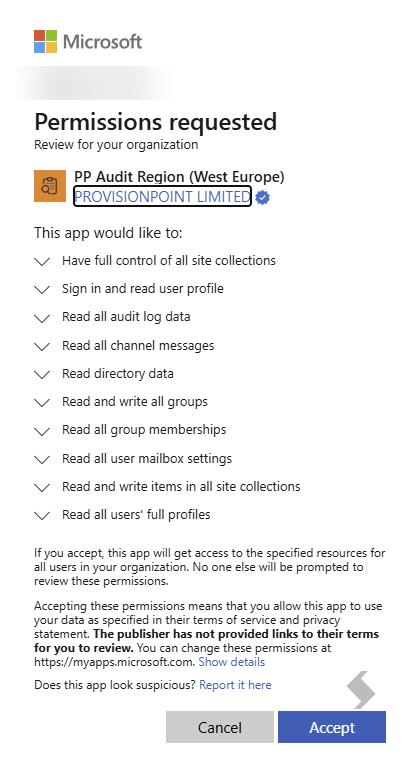
The Signup will complete and the Global Admin will have access to the app. They will need to add the other Admins to the 'Initial' application role
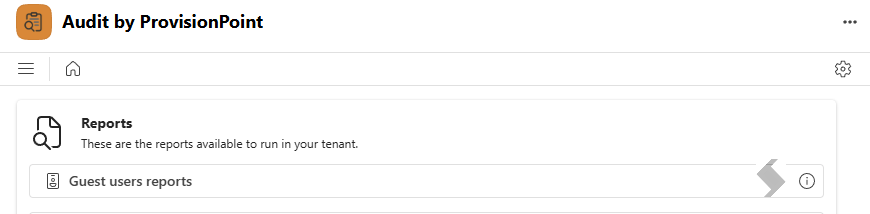
- Select the Cog in the upper right side of the screen,
- Select Application Roles, you will see 'Initial'
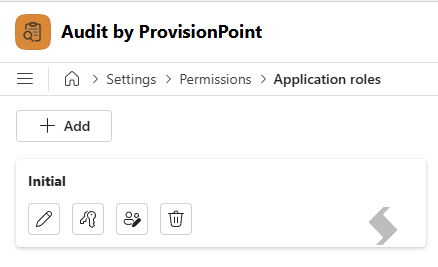
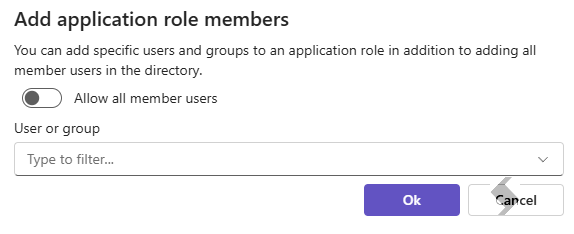
- Select the people picker icon to assign additional admins to the role,
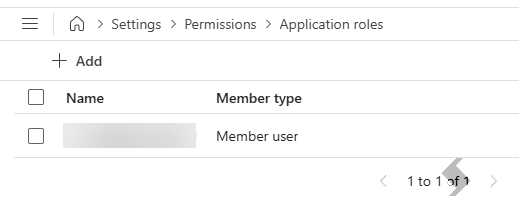
- Click 'Add' to choose the people or Groups that will administer the app setup and access
Teams Admin Centre: Users and Groups & Policies
Users and groups can be used to define who can install the app and see availability of the app. Define this as you need for your organisational best practices.
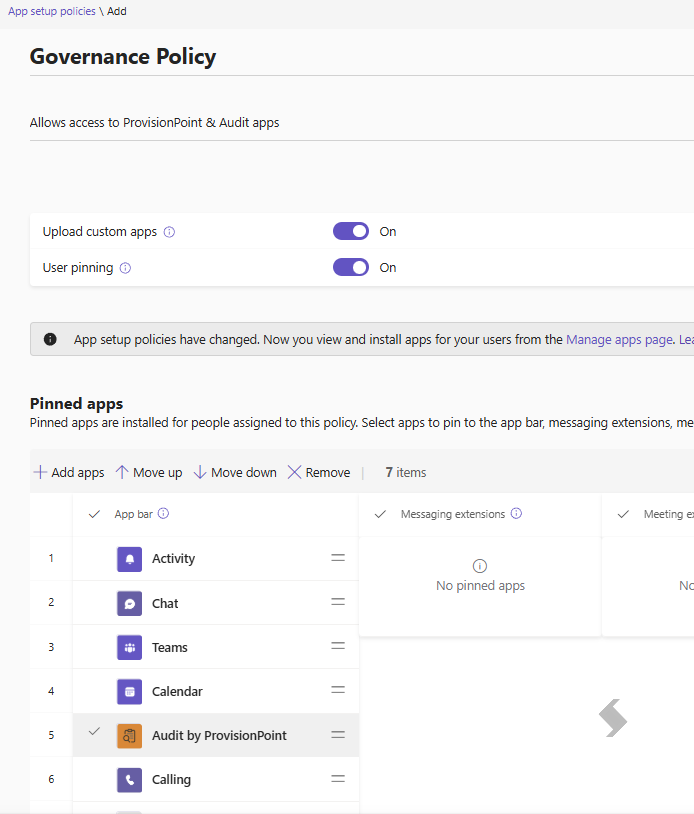
Setup Policies can be used to automatically pin apps within Teams. Create a new Policy or update your existing policies to define who will have the app. Once your policy is setup ensure it is assigned to relevant people.