Once a Compliance Policy has been configured it will need to be linked to Service Definitions. This will then run on any workspaces that have been linked to that Definition.
The same policy can be linked to all Service Definitions to apply the checks to all workspaces or unique policies can be created for each Service Definition.
Multiple 'Managed Compliance Policies' can be linked to a Service Definition (we recommend having as few as possible),
Only 1 'Expiry Compliance Policy' can be linked to a Service Definition.
If you have many workspaces over multiple Service definitions we recommend setting different start times/days for each to ensure the policies will be run successfully.
Link a Policy to a Service Definition
- Go to Admin > Service Definition > Compliance tab
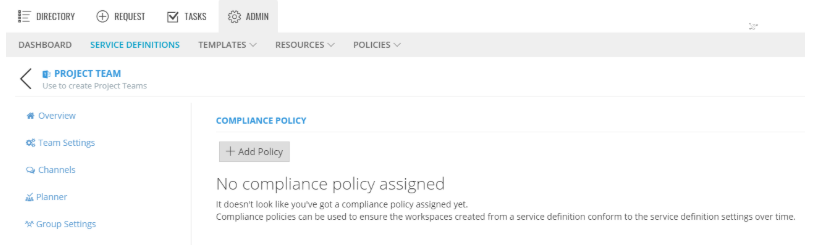
- Click + Add Policy
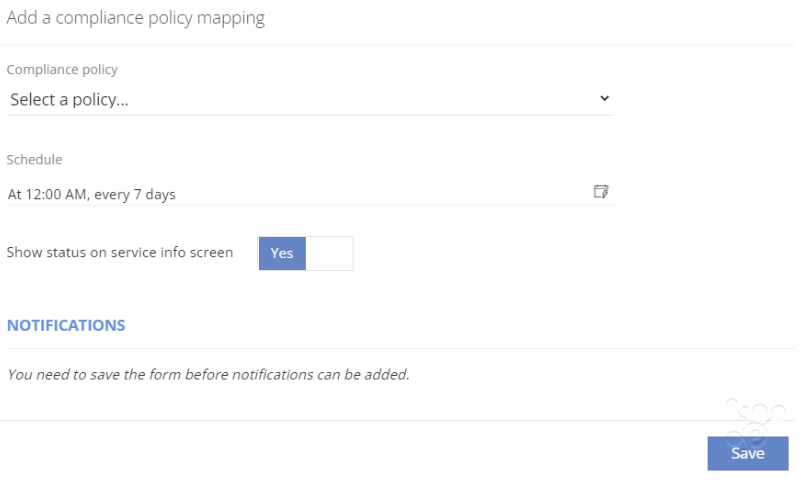
- Select the policy from the list of names, disabled policies will not be displayed.
- Schedule will allow you to override the schedule defined at the compliance level for this Service Definition. If left blank it will use the schedule defined in the policy.
The Service Definition schedule will always override the Policy schedule. - Set 'Show status on service info screen' to yes, to display the last run results on the workspace info screen.
- Click Save, the Policy will be linked.
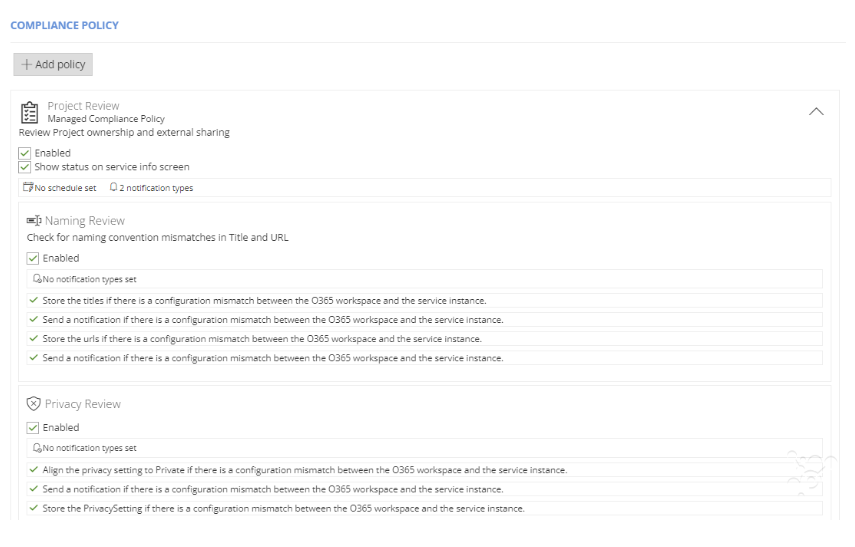
- Expand the policy to view the Rulesets and Rules.
- If any Notify Rules are configured, the notifications can be configured at this level, for example, if there are any failures they can be sent to the Service Definition Admin.
-
NOTE: Amendments to the policy, rulesets and rules cannot be made from the Service Definition, read
Change the Compliance Policy article to find out how to amend them.
Run 'Check Compliance' Action outside of the Schedule
A 'Check Compliance' Action is also available for each Service Definition, this can be run at any time by the service instance owners or delegated people or groups.
This will allow you to choose a managed Policy linked to the Service Definition will be run.
Check the timeline for the results.
Policies with No schedule can be setup to only run via the Action.
This cannot run an Expiry Policy Check, only Managed policies