Reports Overview
Reports can be run on workspaces that were created in ProvisionPoint or imported into it.
The Reports tab can be added on its own or can be linked with Dashboards. The Reports tab is only available to users assigned the App Manager or Report User role. When a report is accessed via a Dashboard the report will automatically be filtered.
There are numerous reports that can be accessed to give you information about the workspace configuration, for example as Privacy settings, expiry dates and the Lifecycle Policies applied.
There are three sub menus shown within Reports:
- Content
- Privacy
- Lifecycle
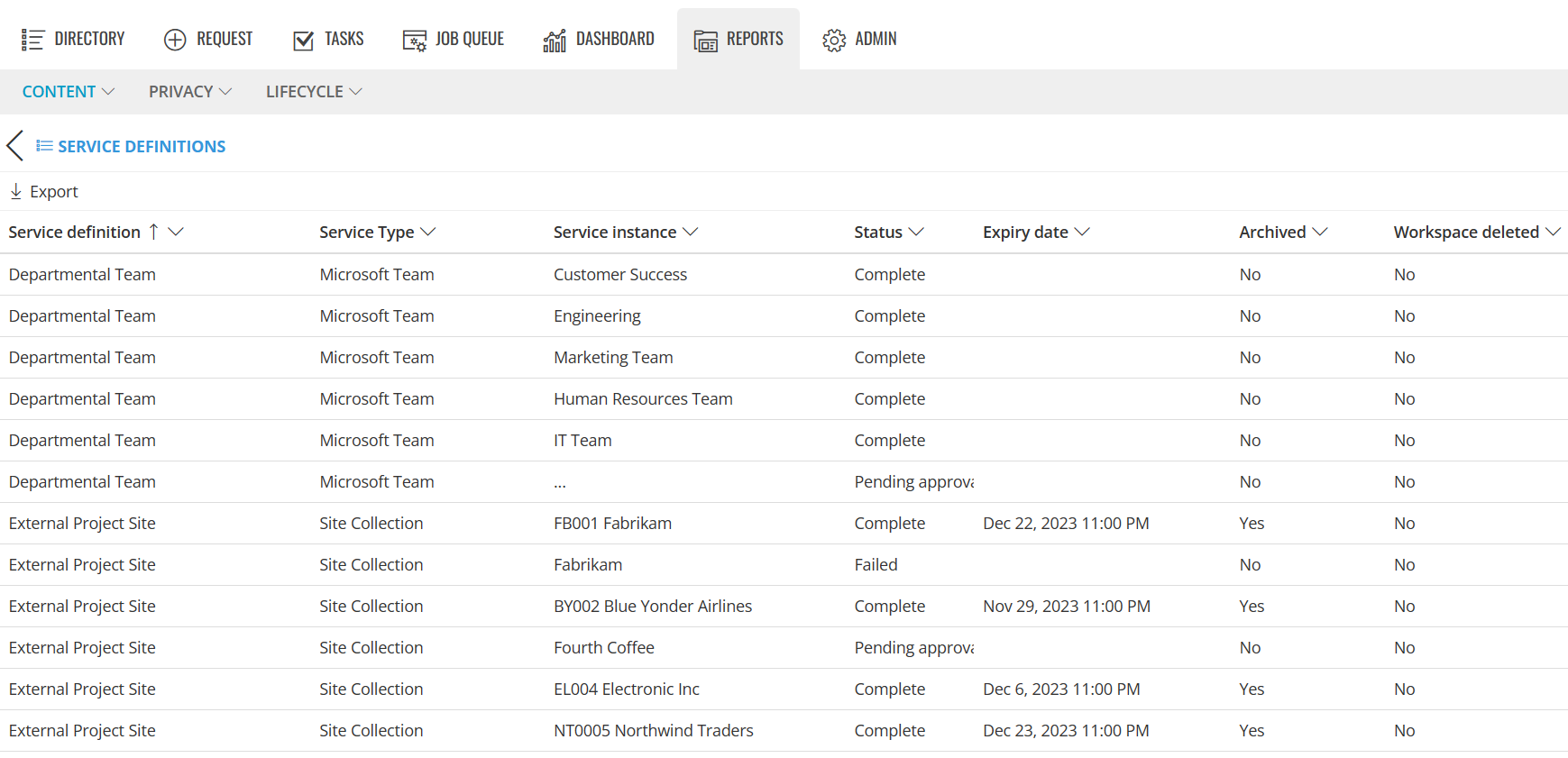
Content Reports
Expand to read more about Content Reports
Four different Reports can be accessed from within the Content sub menu:
- Service Type - view all Microsoft Teams, Planners, Site collections, M365 Groups or Viva Engage Communities or a combination of these
- Service Definition - view the service definition linked to all workspaces to ensure they are associated to the correct one.
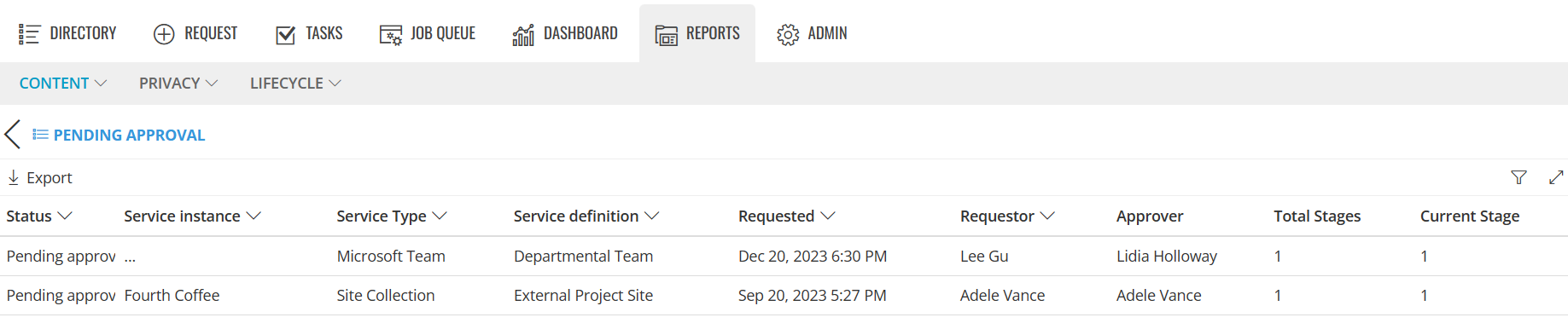
- Approvals - view workspaces that are currently pending approval, as well as additional information such as who the Requestor and Approver is
- New Workspace Requests - view all the requested workspaces, as well as additional information such as when it was requested, the status, and expiry date (if applicable)
Privacy Reports
Expand to read more about Privacy Reports
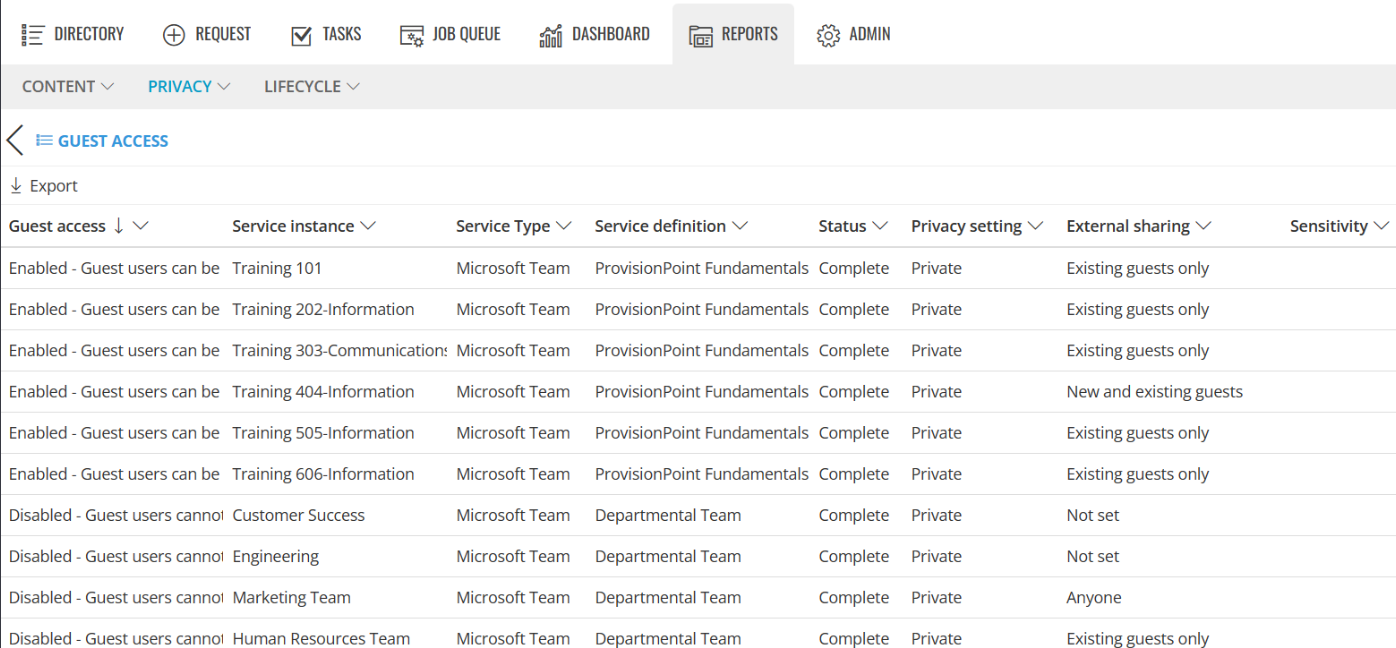
Four different Reports can be accessed from within the Privacy sub menu. all results will show the sharing, guest, privacy, sensitivity and archive or deletion status:
- Privacy Setting, compare private vs public, ensure any creations are set with the correct privacy setting (only applied to Group connected workspaces)
- Guest Access, view workspaces that have guest access enabled of disabled (only applied to Group connected workspaces)
- External Sharing, view the external sharing permission assigned to each Site. Find workspaces that have been shared to externals guest.
- Sensitivity Labels, view any workspaces managed by sensitivity labels
Lifecycle Reports
Expand to read more about Lifecycle Reports
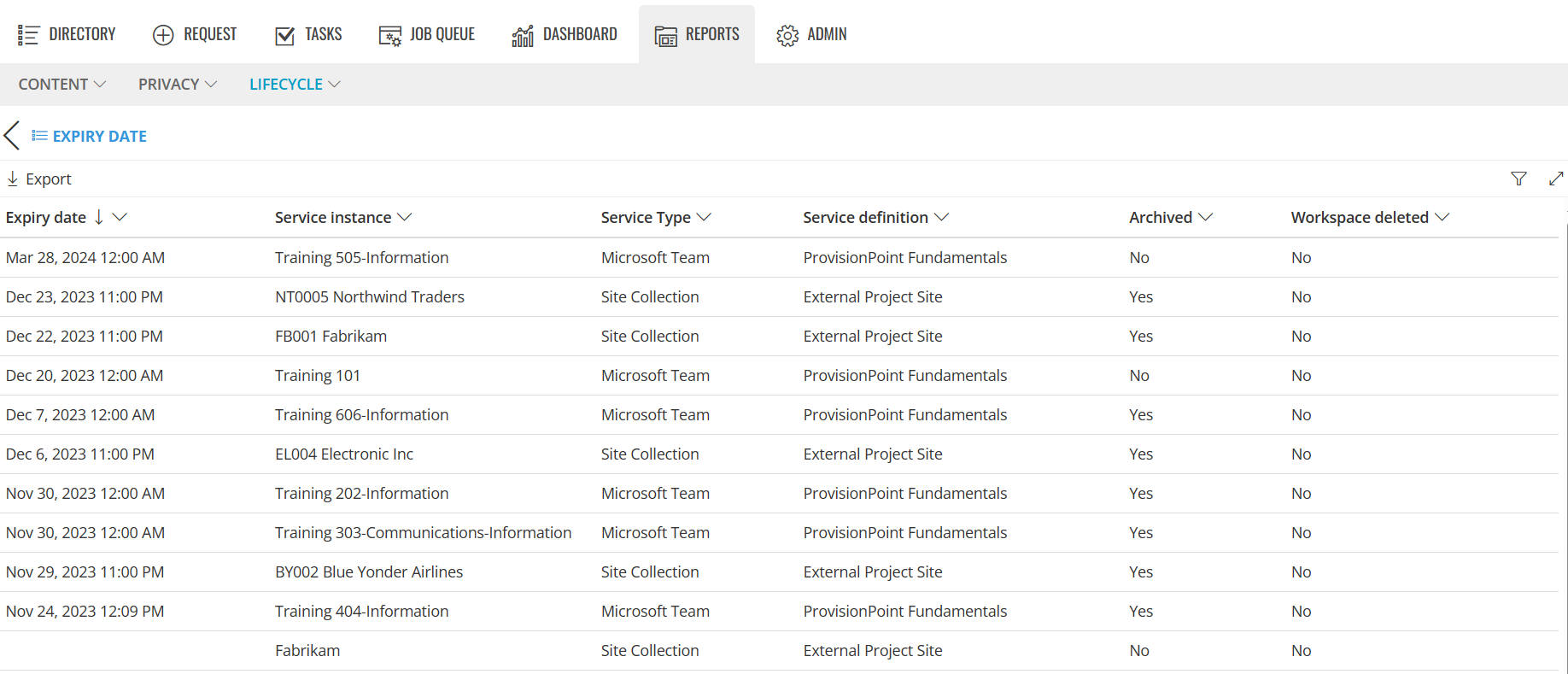
Three different Reports can be accessed from within the Lifecycle sub menu, all will show the expiry date and whether the workspace has been archived or deleted:
- Status - view the status of the workspace, whether it is complete, has failed, is being processed, had approval rejected or is pending approval.
- Lifecycle Policy - view workspaces and the Lifecycle Policy applied to each.
- Expiry - view workspaces by their expiry date, (if one is set).
Filter and Export Reports
Expand to read more about Filter and Export Reports
Each report can be filtered and is exportable to CSV. Sorting can be applied on most columns to organise the data.
Click the filter option on each column or open the master filter on the right-hand side of the app to apply multiple filters quickly:
Click the "Export" button at the top of each page to export the report to CSV, additional information will also be exported. Any filters defined will also be applied at the point of export.