Now you have moved over to lifecycle policies to manage the expiry of your M365 Groups sites, Teams, Plans and Communities, the expiry options are now triggered in one of the following ways:
- before the expiry date
- on the expiry date
- after the expiry date
To ensure you lifecycle policy is applied to all workspaces at the time you expect you may need to manage the expiry date.
This can be achieve using the Actions available in the service definitions.
Our actions allow the following to be configured:
- Approval to be assigned on request
- Restrict who can run the actions (Permissions tab)
- Notify Owners or Admins when they are successful
- View the changes, who made them and when in the timeline
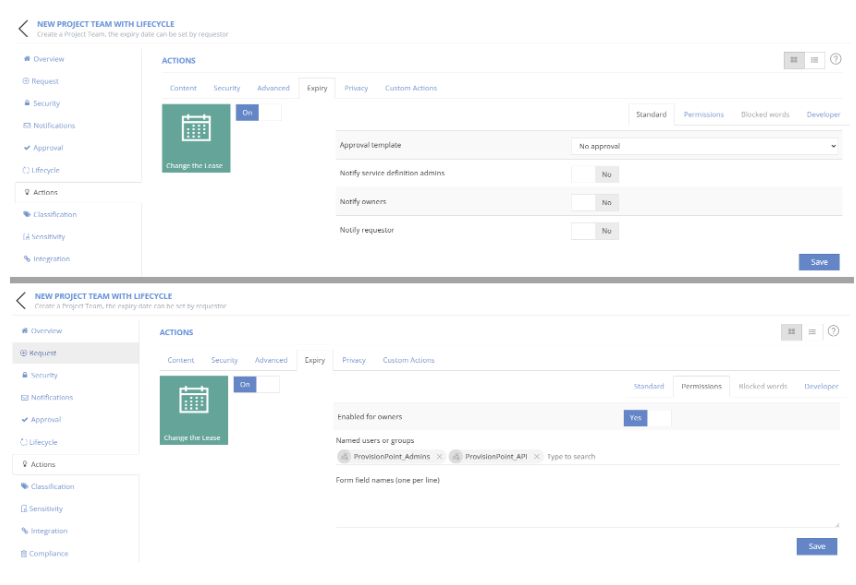
Change the Lease Action
The change the lease action will directly impact the expiry date assigned to your workspace.
This can be set to 0 days to set the expiry date to today.
If there is a stage set to trigger before or on the expiry date, this will be run.
If there is a stage which has already been triggered and run because it was set 10 days before, this will not run again.
The same action can also be used to change the expiry date. For example, the expiry is due in 10 days but an additional 20 days are needed, set the number of days to 30.
This will delay the expiry date.
With either example the dates displayed in the lifecycle info page will be updated.
If you do manage the expiry date via date pickers, you can also use the Update details action to manage the start or end dates.
Expiry Compliance Policies
If you have an expiry compliance policy managing the expiry date this will also either extend or reduce the lifecycle.