What is the URL of a Workspace?
When you create a Team or Site the Site URL will begin with your companies host URL, for example,
https://mycompany.sharepoint.com/sites/ and will be completed with the URL name provided in your requests. For some requests, the Title and the URL will be the same, for others they may be unique.
For Group connected workspaces the URL is also used as the mail Nickname and therefore be applied to the email address for the Site, in this case the URL must not include spaces.
URL Settings in ProvisionPoint
The Site URL can be defined in our app, within a Service Definition > URL Settings. There are 3 options available:
- Set by Requestor (the default) - This will allow the person requesting to type the URL they want. For example, https://mycompany.sharepoint.com/sites/new-team
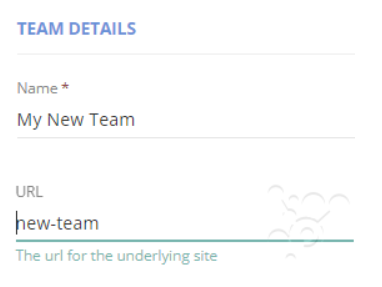
- System Generated - This will apply a random 5 character value that is unrelated to the request. For example, https://mycompany.sharepoint.com/sites/12345
- 3. Dynamic Format - This allows you to build out a static formula for the URL. For example, https://mycompany.sharepoint.com/sites/TM_Ops_INT
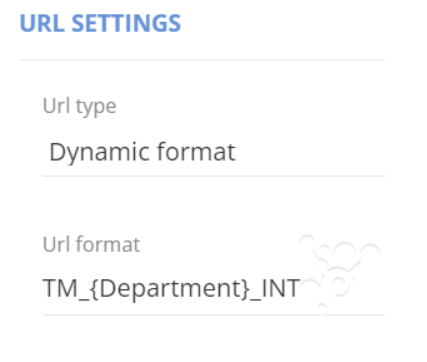
To learn more about naming conventions read our other articles in Add a Naming Convention to a Workspace
What is a URL Mismatch?
Once a workspace is created the URL may get changed because the type is updated or the external sharing is changed or many more.
You may also be thinking of applying a new URL naming policy and what to see how many of your existing sites would need to be updated. Use the compliance policy rules to get reports, send notifications to owners if the URL is non compliant or align a change to the URLs based on the rule configuration.
Define the mismatch value to look for and let the scheduled policy show you the results or make a change using the rules.
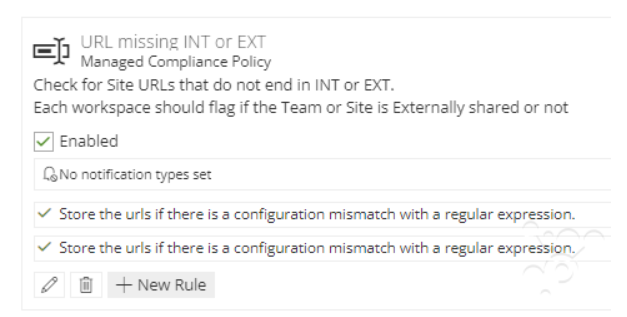
You can also ensure any changes made in O365 are applied to ProvisionPoint instances or vice versa.
Available rules:
| Rule name | Description |
| URL Mismatch - Report | Report only on the mismatch that is configured |
| URL Mismatch - Notify | Send an email to configured people about the non-compliance, this email will include content define in the rule. Additional configuration will be needed, read the Configure Notifications for Notify Rules article |
| URL Mismatch - Align | Align to M365, ProvisionPoint instance, a defined value |
We always recommend starting with a Report rule to ensure the policy brings back the results you expect before applying the action rules (Align)
Mismatch Types
The mismatch you choose will set what is going to be flagged as non-compliant.
| Mismatch Type | Description |
| Instances | The M365 workspace does not match the service instance shown in ProvisionPoint Directory info |
| Service Definition default | The M365 workspace or the service instance do not match the service definition default |
|
Transform Tag
|
The M365 workspace or service instance do not match a transform tag value. A transform tag would be defined in a lookup or as a request variable in ProvisionPoint Workspaces. This value would be used to set the Privacy setting at provisioning.
Add the name of the request variable or lookup to the Mismatch value
|
| Defined values | The M365 workspace or service instance do not match any of the selected values set to Yes |
|
Regular Expression
|
Use Regular expression to define the naming convention, for example INT$ will look for INT at the end of the URL
|
Align Types
If non-compliance is found the align type will set what changes will be applied.
| Align Type | Description |
| O365 workspace | Will set service instance to match the M365 setting |
| Service Definition default | Will set the M365 workspace and the service instance to match the service definition default |
| Service Instance | Will set the M365 workspace to match the service instance setting shown in Info |
| Defined values | Will set the M365 workspace and service instance to match the Align value |
| Transform Tag | Will set the M365 and service instance to match the value set by the transform tag set in Align value. This will be the name of the request variable or lookup. |
Check the Results:
Once a Compliance policy is run you can check the results in the Job Queue and in the Timeline if it is non-compliant.
Read the articles in the Job Queue section: