Tabs and Apps can be added to your Teams Channel Tabs, you can add built-in apps or 3rd party/Custom apps. By default, ProvisionPoint Workspaces will always remove the Wiki tab from all channels.
To add a tab to a channel,
- Go to Admin > Service Definitions > Channels
- Click ‘No tabs’ or '# tabs' on the channel to edit.
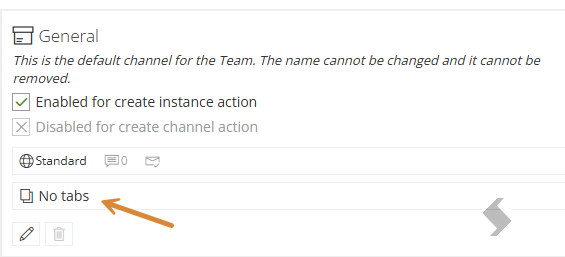
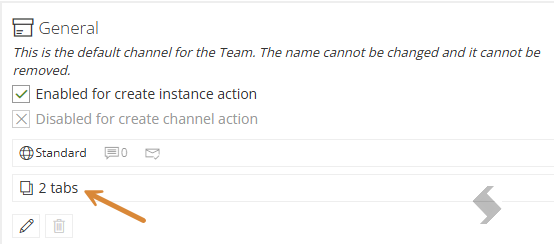
- Click '+New Tab' to add new Tabs
- Name
- Description
- Tab order for the tab, these will always appear after Posts and Shared (Files).
-
Select from a list of pre-built apps or a custom app.
- For Custom or 3rd Party app, you will need to check with the provider for the setup configuration or try using Graph Explorer
-
The pre-built apps available to select are listed below, it is best practice to configure the options to save your users time, if you are unsure of the correct setup you can see some details below or use the graph explorer to look at existing Teams and Tabs to ensure you get the right setup.
|
App Name
|
Entity Id
|
Content Url
|
Remove Url
|
Website Url
|
Additional Set Up
|
| Azure DevOps |
Use Graph Explorer
|
Use Graph Explorer
|
-
|
Use Graph Explorer
|
|
|
Document Library
|
""
|
The URL of the root folder of the document library
|
-
|
-
|
|
|
Excel
|
The sourceDoc ID of the file*
|
The URL of file in the format {folder-webUrl}/{item-name}ame}
|
-
|
-
|
|
|
Microsoft Forms
|
The FormId**.CollectResponse
|
The Forms Team Response Page
|
-
|
The Forms response page
|
|
|
Microsoft Stream
|
-
|
The embed link starting at https
|
-
|
The direct link Url of the Channel or Video
|
|
|
OneNote
| - |
-
|
-
|
-
| Will only create the Tab, the OneNote will need to be configured in Microsoft. |
|
PDF
|
The sourceDoc ID of the file*
|
The URL of file in the format {folder-webUrl}/{item-name}
|
-
|
-
|
|
|
Planner
|
Click {} to add the configured planner in the Service Definition
|
Click {} to add the configured planner in the Service Definition
|
-
|
-
|
|
|
Power BI
|
The Report ID (found in the URL)
|
The Embed URL for the report
|
-
|
The Report URL
|
|
|
PowerPoint
|
The sourceDoc ID of the file*
|
The URL of file in the format {folder-webUrl}/{item-name}
|
-
|
-
|
|
|
SharePoint
|
The Library or List ID
|
The URL of the List or Library including view options {SiteUrl} can be used
|
-
|
The URL of the List or Library including view options {SiteUrl} can be used
|
|
|
Website
|
-
|
The URL of the website
|
-
|
The URL of the Website
|
Will now open in a new Browser
|
|
Whiteboard
|
-
|
Required - see article
|
-
|
Required - see article
|
|
|
Word
|
The sourceDoc ID of the file*
|
The URL of file in the format {folder-webUrl}/{item-name}
|
-
|
-
|
|
|
Youtube
|
-
|
Required - see article
|
-
|
Required - see article
|
|
*this can be found in the SharePoint URL for the document or by using the Graph Explorer
**this can be found in the Form URL
-
Click Save to keep the setup for the Tab
-
Click Done to exit the Tab setup
-
Click Save on the Service Definition
When the request is processed your tabs will be added to your Team
Add ProvisionPoint Info Page to the Teams App