We are planning on using the ProvisionPoint Teams app to allow users to self service. However we do not want to reference ProvisionPoint. Can we change the icon and name of the app?
Can we also change the tabs that are displayed to restrict it to just show the requests tabs?
The default settings for the ProvisionPoint app will make the app show up for users within Microsoft Teams with the ProvisionPoint name and logo.
Yes, it is possible to customise the app.
To do so, prior to installing the ProvisionPoint app, some changes will need to be made using the Microsoft Teams Developer Portal.
In this article we will guide you through setting this up.
If the default ProvisionPoint Microsoft Teams app is already installed, please ensure this is deleted from the Microsoft Teams Admin Center before following the steps in this article.
Once on the Developer Portal, follow these steps:
1. Click on 'Import an app'
2. Navigate to the ProvisonPoint Teams app .zip-file and upload it.
3. On the 'Basic Information' tab, change the 'Short name - 30 characters or less' to what you would like to see on the button in Microsoft Teams.
In this article, we will rename it to 'Provisioning'.
Scroll to the bottom and click 'Save'.
4. On the left-hand side, switch to the tab 'Branding'. This is where the images can be adjusted to your preference. The image size requirements are listed below each image type.
5. To change the logo that shows when users search for the app within Microsoft Teams, the 'Color icon' needs to be amended.
In this article, we will replace the ProvisionPoint logo with a simple image with the text 'LoGo', with the dimensions listed: 192x192 pixels.
6. To change the logo that shows on the button displayed in the Microsoft Teams app, the 'Outline icon' needs to be amended.
In this article, we will replace the ProvisionPoint logo with a Microsoft Teams logo.
7. If you would like to change the 'Accent colour', you can use the color picker when clicking on the square.
In this article, we have replaced the typical ProvisionPoint Orange with a bright Green.
Note: the page may need to be refreshed before the newly uploaded images show up.
8. To customise the tabs displayed, go to the configure section > App Features > Personal app & select edit
Edit the existing tab or add additional tabs to be displayed.
You will need to ensure you use the correct Url for the Instance f ProvisionPoint:
9. Click on 'Distribute' at the top right, then click on 'Download the app package'. A new .zip-file will be downloaded.
Now that the ProvisionPoint Microsoft Teams app has been personalised, it can be
installed via the Manage Apps page within Microsoft Teams Admin Center.
After installing the app, it needs to be found by searching for the name that was given during the personalisation. So instead of searching for 'ProvisionPoint', in this article we search for 'Provisioning' instead.
Once the app has been added and installed, the users will see the personalised button on the left-hand side in their Microsoft Teams app.
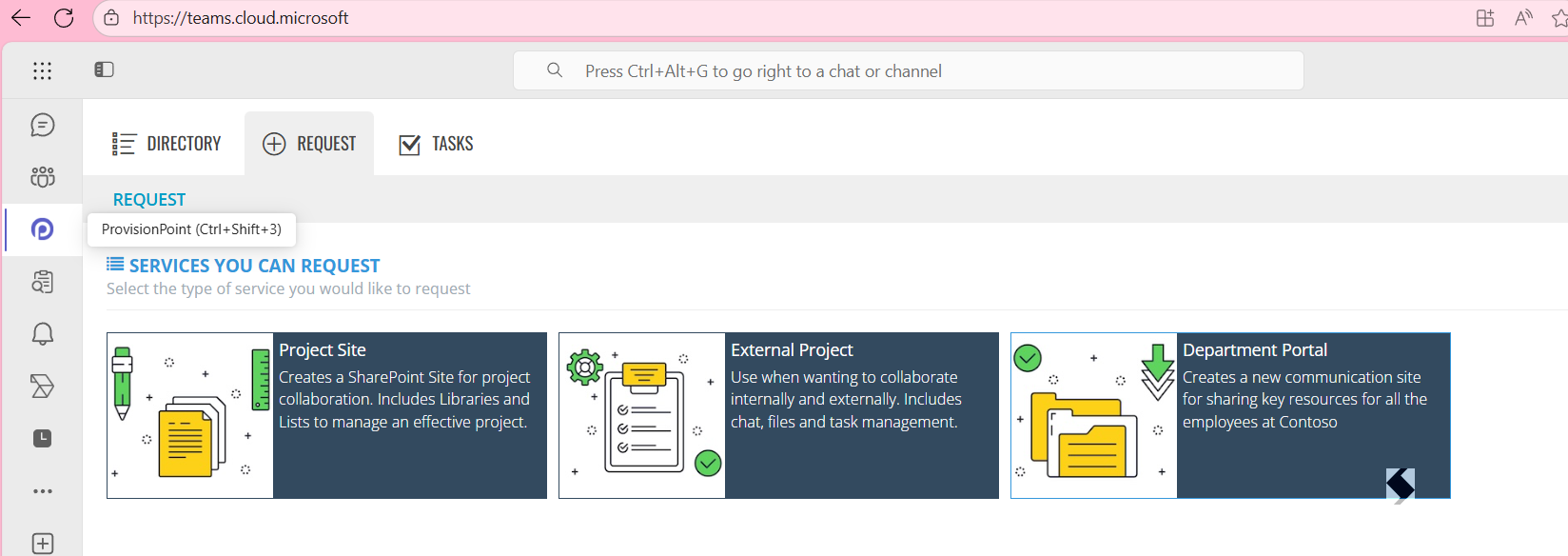
As you can see in the image below, the personalisation that we have done for this article has been applied:
- The ProvisionPoint logo has been replaced with a Microsoft Teams icon
- The name 'ProvisionPoint' has been replaced with 'Provisioning'
- Only the Request tab will be displayed