Teams notifications can now be enabled and configured in ProvisionPoint.
This article will explain how to configure and format your notifications.
Enable Teams Notifications
- Go to Admin > Settings > App Settings > Notification Settings
- Set the 'Enable Teams notifications' to Yes
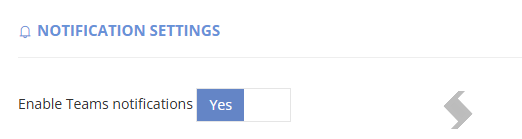
Note: Disabling Teams notifications for the app will hide any teams notifications you have setup.
- Go to Each Notification you have and edit.
- Add Teams Notification
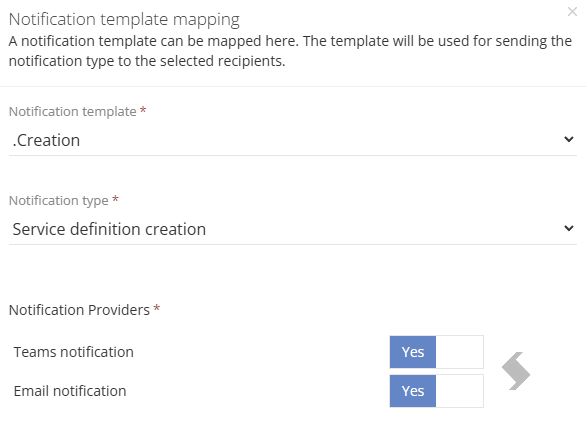
- Repeat for Notifications in
- Service definition
- Approval Templates
- Lifecycle Policy Stage Reminders
- Lifecycle Stage completion
- Compliance Policy (Notify Rules)
Sign in to Teams bot
Each user that will receive a Teams notification, will need to add the ProvisionPoint Teams app to their Teams and complete the sign in.
A new ProvisionPoint bot will be displayed in the users chat. This will contain all teams notifications for the logged in user.
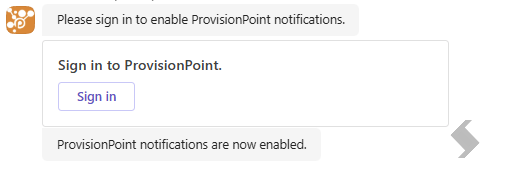
If a timeout is received, type 'signup' or 'login' to get a new prompt.
Customise the Teams Card
The Notification will pass through the same setup as the email, go to Admin > Templates > Notification Templates to define the information used.
More information can be found in: Create Notification Templates, including tags that can be used
Below are some best practises we can share:
- Use number or bullets to show information clearly
- Do not use a second level, the information will not be displayed
- Additional Notification tags can be used to pass on useful information
- For Approval templates the 'Comments' field, 'Approve' & 'Reject' buttons will be added by default
- For Lifecycle reminder add any of the following buttons by using the tags below. They will always appear at the bottom of the card:

- Extend Lease button = {Notification.Card.Action.ExtendLease}
- Linked to the 'Extend Lease' Action, it must be enabled and the user must have permission to run or an error will be displayed
- Archive button = {Notification.Card.Action.Archive}
- Linked to the 'Change the Lease' Action, it must be enabled and the user must have permission to run or an error will be displayed
- M365 Archive button = {Notification.Card.Action.M365Archive}
- Linked to the 'Move to M365 Archive' Action, it must be enabled and the user must have permission to run or an error will be displayed
- Delete button = {Notification.Card.Action.Delete}
- Linked to the 'Delete Workspace' Action, it must be enabled and the user must have permission to run or an error will be displayed