You can export data into a CSV file from the main views within ProvisionPoint, which include:
- The Directory (All Sites, Sites I Manage, and Archived Sites)
- The Job Queue
- Requests
- Compliance (Scheduled Runs and Policy Checks)
- Lifecycle
- Reports
The view details can be exported to CSV, apply filters and sorts to the data, then click the export button.
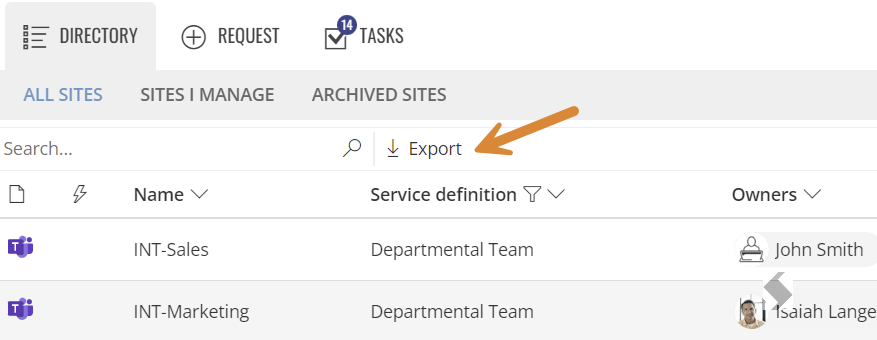
Once selected the Export button will be greyed out until the export is completed. Navigating away or refresh will stop the export.
This will default to your user setup for downloads
The data will be exported into a CSV file.
Each view will export different data relevant to the view you are in:
When exporting from the Directory, a file called directory.csv will be created
This view will display additional information about the requests including:
- Name
- Id (ServiceInstanceId)
- Service Type
- Service Definition
- GroupId
- Created Date
- Status
- Description
- SiteUrl
- TeamUrl
- PlannerUrl
- YammerUrl (Viva Engage)
- Requested by
- Owners
- Classification Label
- Sensitivity Label Id & Name
- Visibility (ProvisionPoint's directory visibility)
- Privacy Setting
- Guest Access
- External Sharing
- Expiry Date
- If the Lifecycle has been processed
- Geo Code
- Archived status
- Deletion status
- Storage Quota
- M365 Archived Status
When exporting from the Requests Job Queue, a file called requests.csv will be created
This view will display additional information about the jobs shown in the queue including:
- OperationId - unique id for the request
- Name
- Id (ServiceInstanceId)
- Service Type
- Action name: create, delete, archive, etc
- Action ID
- Custom Action ID
- Status
- Error
- Trace - A log of all items that have run and any errors.
- Requested by
- Requested Date
- Request Trace
- Service Definition
- Site Url
- Approval template
- Approval Status
- Approval assigned to
If you are planning on using the API to manage failed requests, the OperationID is needed to identify the job to process.
When exporting from the Compliance Job Queue, a file called scheduled-runs.csv or policy-executions.csv will be created
There are 2 views for Compliance:
- Scheduled runs - all runs that have been made
- Policy checks - All checks on each workspaces over time
As these views can get large, we recommend filtering the view to specific date ranges to assist with downloads.
These views will display additional information about the compliance checks that have been run and their results, including:
- Scheduled runs, Get an overview of how many items are compliant or not from this run.
- Id (Scheduled run Id)
- Policy_UsageType
- Policy_Name
- ServiceDefinition_Name
- ServiceDefinition_ServiceType
- Status
- Triggered
- TriggeredBy
- TriggerType
- ExecutionResults_SuccessCount
- ExecutionResults_FailedCount
- ExecutionResults_NotRunCount
- ExecutionResults_WorkspaceChangesCount
- ExecutionResults_NonWorkspaceChangesCount
- ExecutionResults_NoResolutionsCount
- ExecutionResults_TotalCount
- ExecutionResults_CompliantCount
- ExecutionResults_NonCompliantCount
- ExecutionResults_CompliantPercentage
- Policy Checks - filter this view for non compliant or failed items and date to get an action list to review
- ServiceInstance_Id
- ServiceInstance_Name
- Id
- Policy_UsageType
- Policy_Name
- ServiceDefinition_Name
- ServiceDefinition_ServiceType
- Status
- Compliant
- Success
- TriggeredBy
- TriggerType
- Triggered
- Started
- Completed
- CompletedStatus
- Trace
When exporting from Reports, a file with the report name will be created
The information output will be the same as displayed in the view with the following additions:
- Service Instance Id
- Privacy
- External sharing
- Guest accessSensitivity Label Id & Name
- Lifecycle Policy
- IsM365 Archived?
- CustomServiceTypeId