The management of Guest Users in SharePoint and Teams is one of the most important compliance challenges with Microsoft 365.
It is difficult to gain clear visibility of what guests have access to Microsoft 365 and the scope of their access.
The Audit app allows you to quickly identify:
- Which Sites and Teams a Guest User has access to & the role they have been assigned
- The status of the Guest user,
- If they accepted the invite,
- If they are disabled or orphaned and
- When the guest was created
You can also use the different reports to:
| Report Name | Why it may be run | Filters available | Results include |
| Tenant wide guest user report |
Get a complete picture of all the guests in Microsoft 365 and the workspaces they can access.
Review which guests may need to be removed due to incorrect role assignment, invite outstanding for too long or access to the wrong Team or Site.
| n/a |
- Guest Display name
- Email
- Name of Site or Team
- Url of Site
- Type - Team, Group Site
- Role
- Create date (when they were created in AD
- If the invite request is pending
- If the account is disabled
- If the account is orphaned
|
|

|
| Guest users in workspace report |
Focus on specific workspaces to see if there are guests in that Site or Team.
| Workspace - type the name of the workspace to review |
- Guest Display name
- Email
- Type - Team, Group Site
- Role
- Create date (when they were created in AD
- If the invite request is pending
- If the account is disabled
- If the account is orphaned
|
|

|
| Specific guest user report | Focus on a specific Guest user to find all workspaces they have access to | Guest User - type the guest accounts name |
- Name of Site or Team
- Url of Site
- Type - Team, Group Site
- Role
|

|
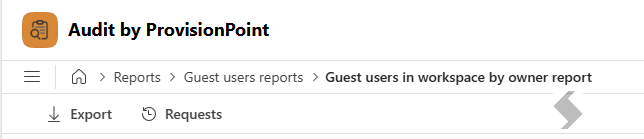
| Guest users in workspace by owner report |
Focus on specific workspaces to see if there are guests in Sites or Teams the person selected is an Owner of.
Allows Owners to report on items they are responsible for.
Review which guests may need to be removed due to incorrect role assignment, invite outstanding for too long or access to the wrong Team or Site.
| Owner - This will default to the logged in user. The Owner can be changed or this can be locked. | Same results as the tenant wide report |
|

|
Export Results
Each report result can be exported for further filtering and actioning. This will be exported to an excel file (xlsx) with the name of the report that has been run.
Remove Guest Users
From the Tenant wide guest users report & Guest user in workspace reports, an action is available to remove a Guest user from the workspace. This can only select a specific user
- Select the check box for a specific guest user, to enable the Remove action button.
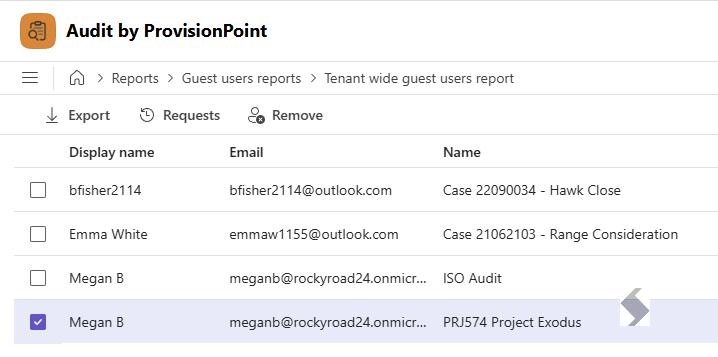
- Click the remove button to open the panel that allows the removal of the selected Guest user from the selected workspace.
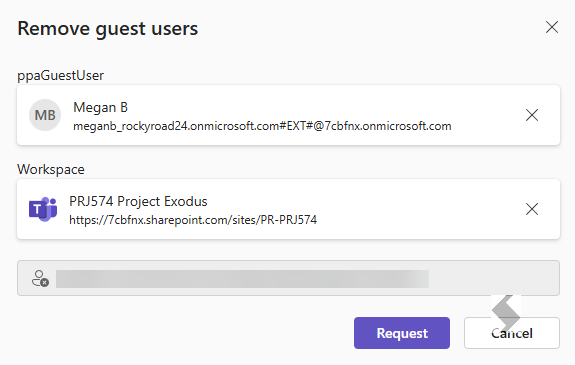
- To Remove the Guest user from all workspaces, click the X on the Workspace area
- To remove all guests from a workspace, click the X on the Guest User
- Click Request
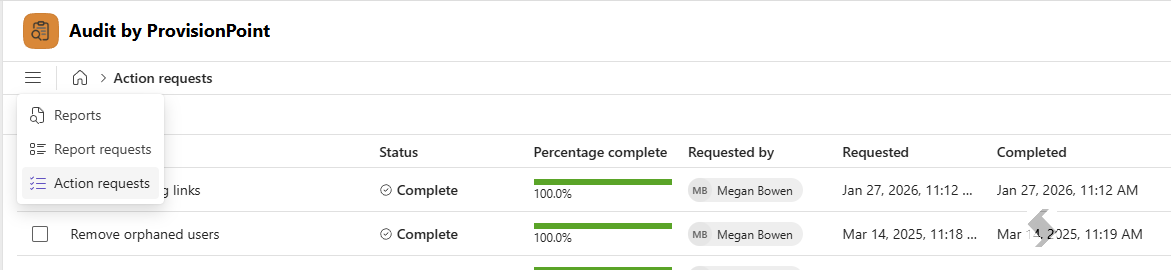
The Action will be logged against the report and can be reviewed from the Action Request area.
Please note that removing the Guest will not remove it from the tenant, only from the Teams or Sites.