Being able to report on storage within your tenant offers numerous benefits. Being able to provide detail insights into storage consumption allows you to better plan and allocate storage resource. Understanding the usage also helps in managing and controlling costs. Storage reports can also help identify redundant or obsolete workspaces.
The Audit app allows you to quickly see
- Which workspaces and OneDrive are using the most storage within your tenant
- Drill down into the workspaces to see which libraries are taking up large storage amounts
- Which Files are large in size
- Which files have too many versions
| Report Name | Why it may be run | Filters available | Results include |
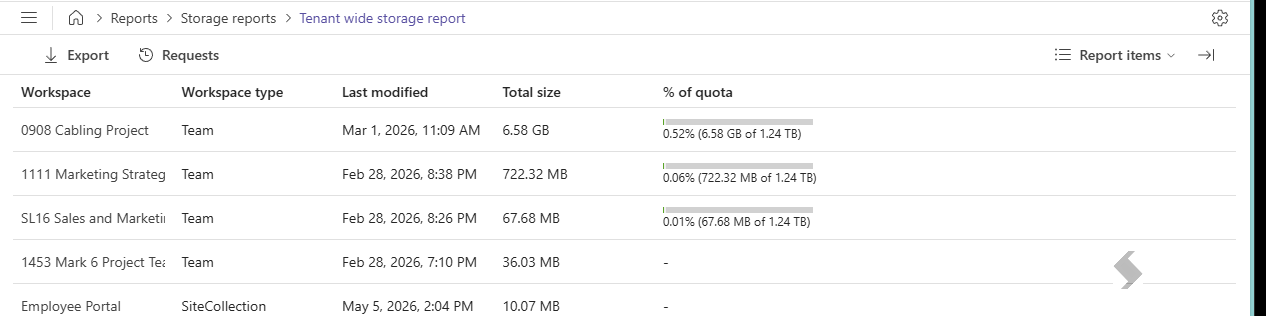
| Tenant wide storage report |
Get a complete picture of your storage in Microsoft 365.
Review which sites are using the most of the quota and see if there are actions to be taken to reduce the storage costs.
Switch to Summary view to also see an summary of the report |
- Workspace filter by Upn, Title or Url
- Include Workspaces - enabled by default, can be removed if reporting on OneDrive only.
- Include OneDrives - toggle on to include in the report
|
- Workspace, the name
- Workspace Type, Teams, Sites, Groups
- Last Modified
- Total Size
- % of quota
- Via Summary report
- Site count
- Overall % of quota for all Sites
- Requested by
|
|
|
| Storage in workspace report |
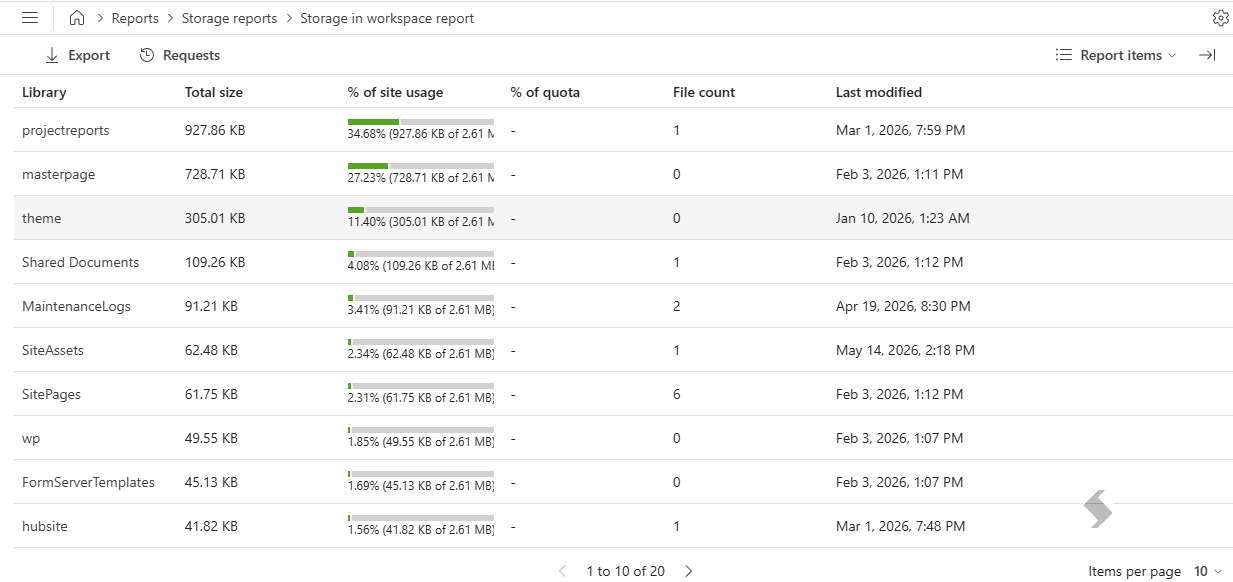
Focus on specific workspaces to the storage levels
| Workspace - type the name of the workspace to review |
- Library
- Total size
- % of site usage
- % of quota
- File count
- Last Modified
|
|
|
| Storage in OneDrive |
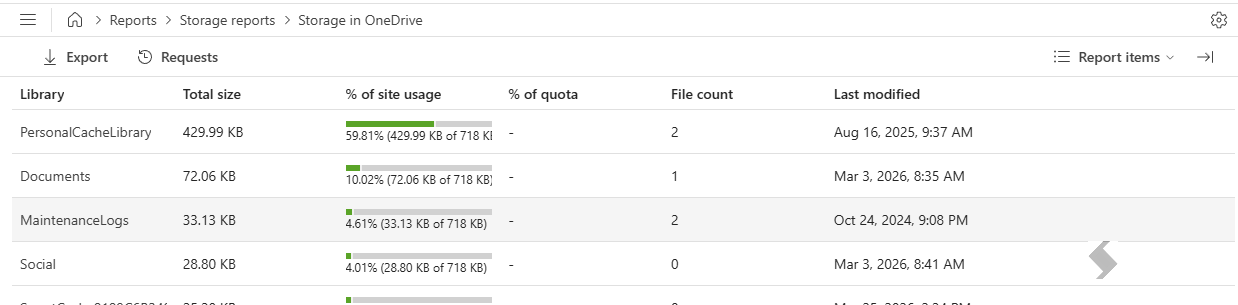
Focus on a storage within a OneDrive account. Find personal file storage that may need a cleanse.
| OneDrive -will default to the logged in user, but can be changed or locked down |
- Library
- Total size
- % of site usage
- % of quota
- File count
- Last Modified
|
|
| Tenant wide file sizes report |
Focus on files with large numbers of versions or large file sizes to understand where these files are and look to reduce versions or large files to reduce storage costs
Use the filters to look at specific workspaces and OneDrives
|
- More than xx Versions
- Size is larger than xx
- Workspace filter by Upn, Title or Url
- Include Workspaces - enabled by default, can be removed if reporting on OneDrive only.
- Include OneDrives - toggle on to include in the report
|
- File
- Folder
- Library
- Workspace
- Version
- Size
- Total size
- Last Modified
- Via Report Summary
- Total file count
- Total size of all files
- % of quota used
- Workspace count
- Filter applied for version or size
|
|

|
Export Results
Each report result can be exported for further filtering and actioning. This will be exported to an excel file (xlsx) with the name of the report that has been run.