Once you have your Teams, Sites, Communities and Planners created or imported into ProvisionPoint, changes can be made using Actions.
Actions are enabled and permissions defined by the app managers in each Service Definition. They can be assigned to the Owners, admins or additional people or Groups in the tenant. We can also define permissions to a people picker column on the request form, this will dynamically take the person on the request form and give them access.
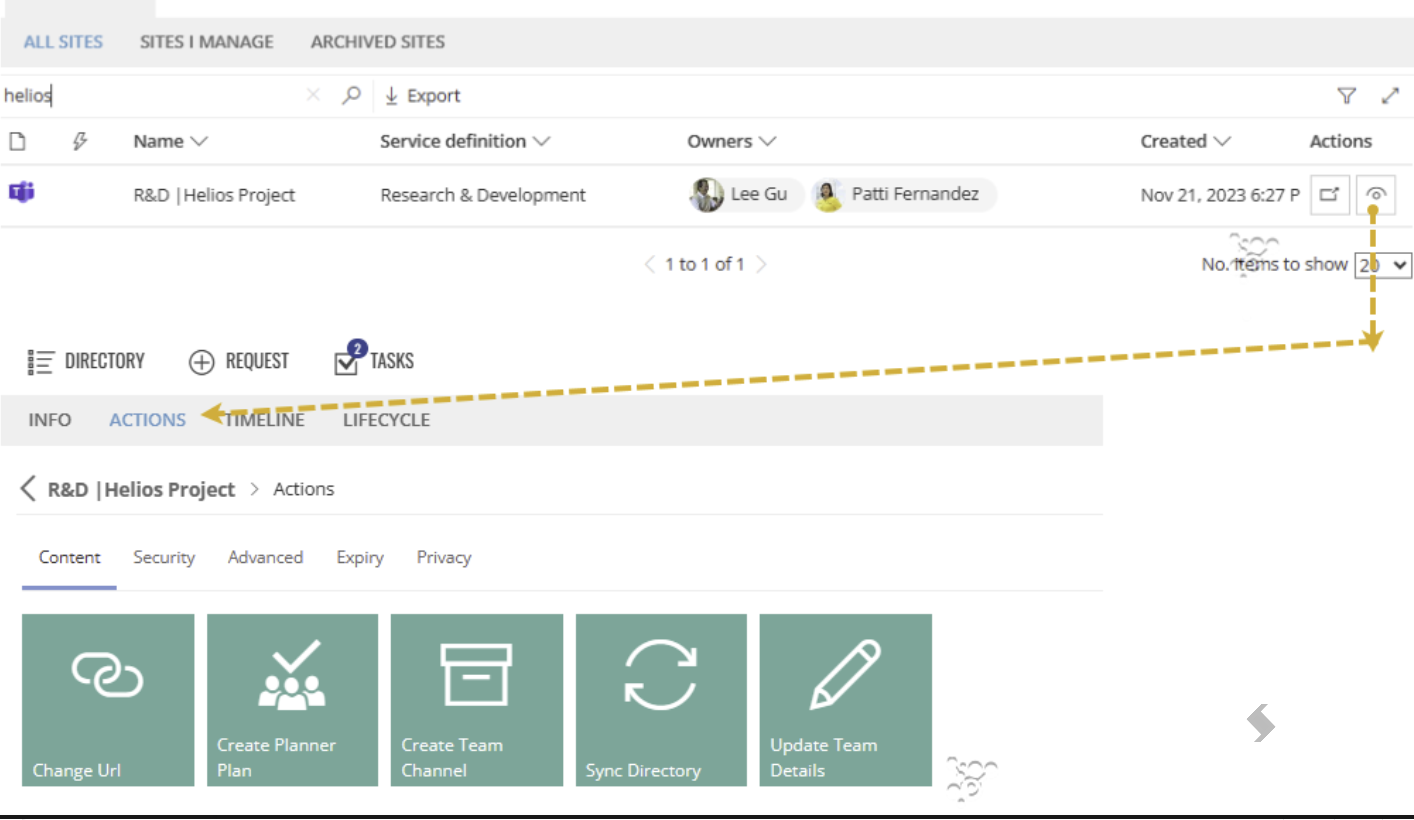
If permissions has been given to you, the Info page will show the Actions tab.
Access this by opening the Directory and viewing the details of the instance you want to amend.
Approvals can also be applied to ensure requests for change can be managed correctly.
Expand to see what the default Actions are within ProvisionPoint
| Section | Action Name | Additional requirements |
| Content |
- Update Details - Update name, description and metadata (custom Columns)
- Change Url
- Create Lists - Add new lists and libraries (using List templates in the Service Definition)
- Create Planner Plans^ - Add new plans (using Plan templates in the Service Definition)
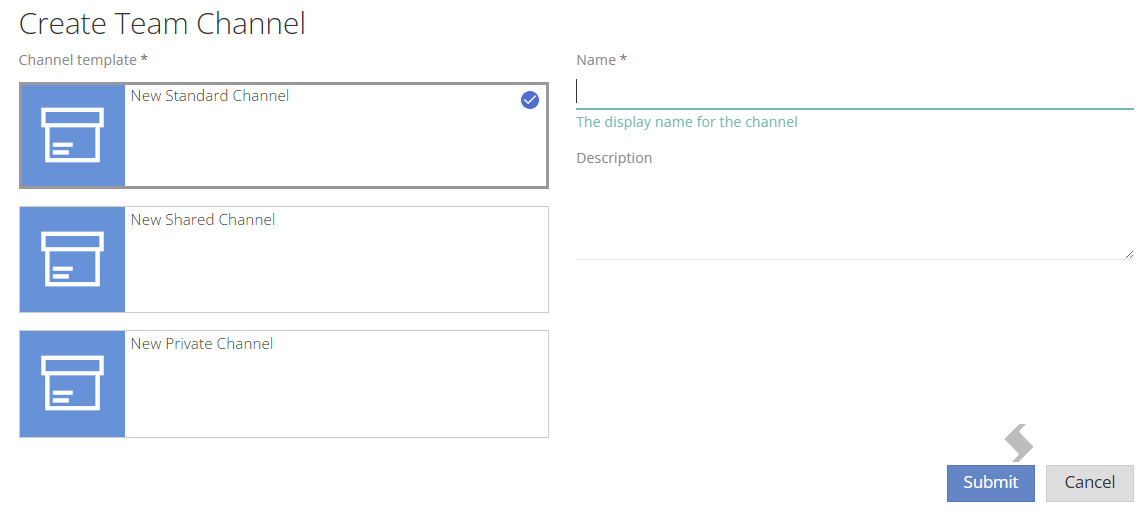
- Create Team Channels^ - Add new Channels (using Channel templates in the Service Definition) Private, Shared, Standard supported
- Change Default Retention Label - that are applied to lists and libraries
- Convert to Group*^
- Convert to Team*^
- Sync Directory - If there is a Site Directory list linked, ensure the data shown in ProvisionPoint is pushed to the list
- Create Sub Site
- Associate to Hub Site
- Register as Hub Site
|
*Convert actions are only visible on non group or non Team connected Service definitions.
^requires a service account
Team and Group related actions will only be displayed if the Service type is the same.
|
| Security |
- Add Owners
- Remove Owners
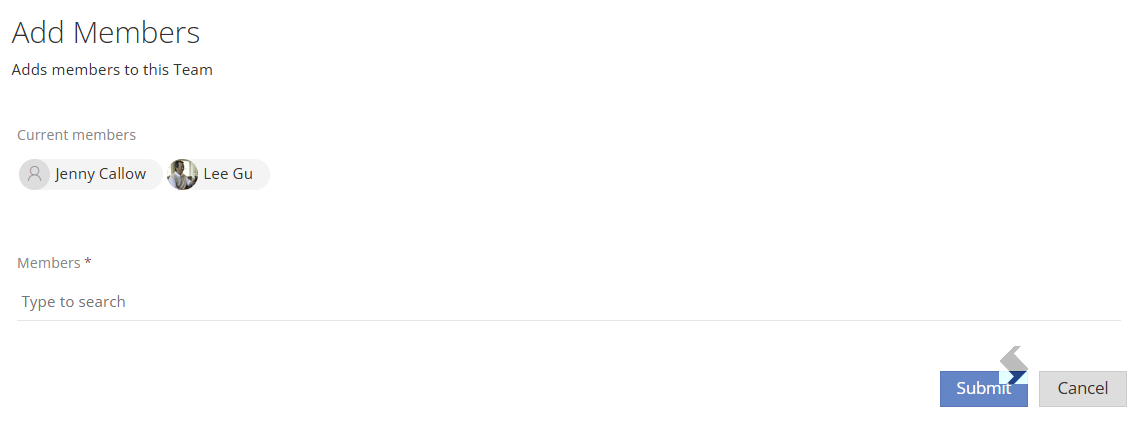
- Add Members
- Remove Members
- Add Guest User* - Invites a guest into the tenant and on to the workspace
- Change Site Security
- Change List Security
|
*The workspace must have guest access enabled and external sharing to new and existing guests. Must also allow Send invitation in the service definition
|
| Advanced |
- Change Storage Quota - Increase the storage for the Site
- Check Compliance - Choose a compliance check to be run immediately
|
|
| Expiry |
- Change Archive State - For Teams will Archive, make Site/files read only for members, move to the Archived Sites view in ProvisionPoint.
- Move to M365 Archive* - Trigger move to M365 archive, will archive Site and move to the Archived Sites view in ProvisionPoint
- Delete Workspace - Will rename to the Service type in use. Perform soft delete in M365, update status in ProvisionPoint, prevent compliance checks.
- Delete from the Directory - Will remove the workspace from ProvisionPoint, will not impact M365 at all.
- Change the Lease - Set a new expiry date a number of days from today
- Reapply Lease - Reapplies the current lifecycle policy, if using request variables to set the expiry date may increase the number of days.
- Set Expiry Rule State - Exclude from the Expiry policy checks
- Restore to Directory (API only)^ - Check if the deleted status of the Group, Team or Site is removed in M365. If it is will remove the deleted status in ProvisionPoint.
|
*Requires subscription and enabling in your tenant to work.
^If Group connected but the group is not restored, this will fail. Import into another service type service definition or relink and contact support for assistance.
|
| Privacy |
- Change Privacy*
- Change Guest Access*
- Change External Sharing*
- Change Sensitivity* - Only changes sensitivity at the container level (Team, Group, Site. Will not impact Lists or Library defaults.
- Change Classification Label*
- Change Directory Visibility* - Will change the visibility in ProvisionPoint's Directory. Use to hide confidential workspaces from general view.
|
*Will only give override options set in the Service definition. If none are available the action will not be displayed.
|
| Channels |
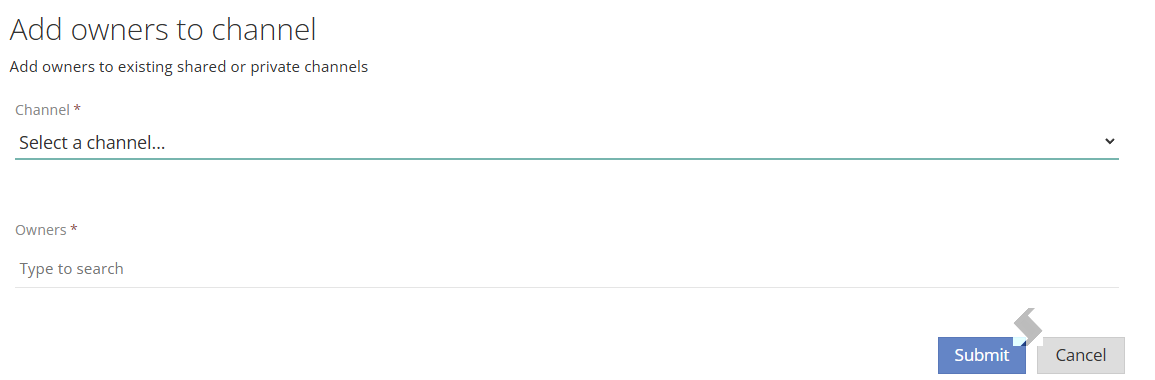
- Add owner to Channel
- Remove owner from Channel
- Add member to Channel
- Remove member from Channel
|
Will work on Channels that have been created in M365 or ProvisionPoint.
|
Custom Actions can be created to perform additional Actions, the Section they are displayed in can be the same as ours or a Custom section can be created.
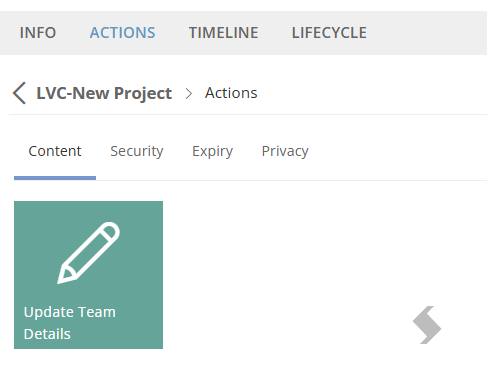
- Choose the action to run by clicking the Tile
- Each action may have additional selections or details to be provided. Complete the form.
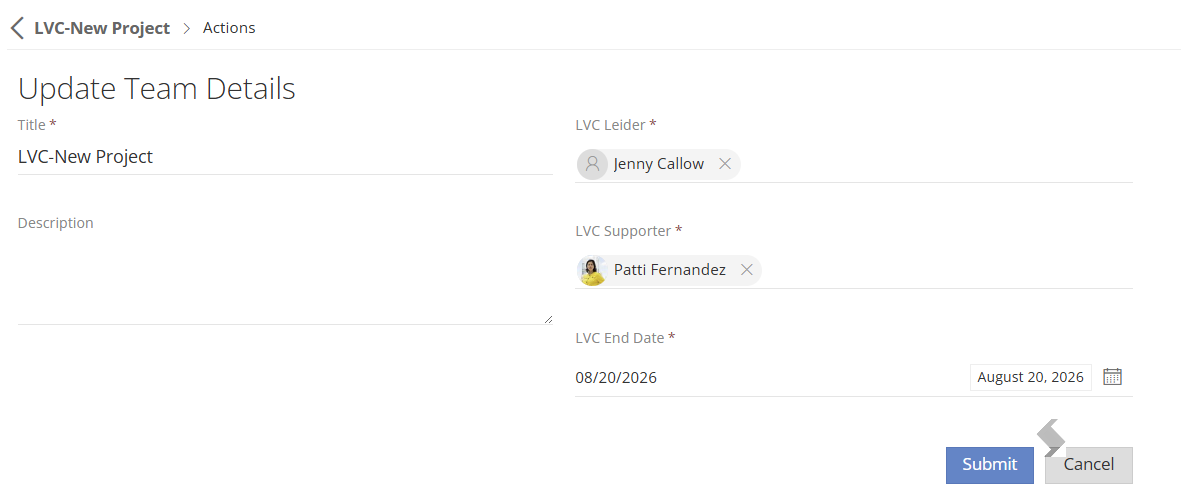
- Click Submit
- Check the results in the Timeline
- A swirling blue circle = processing
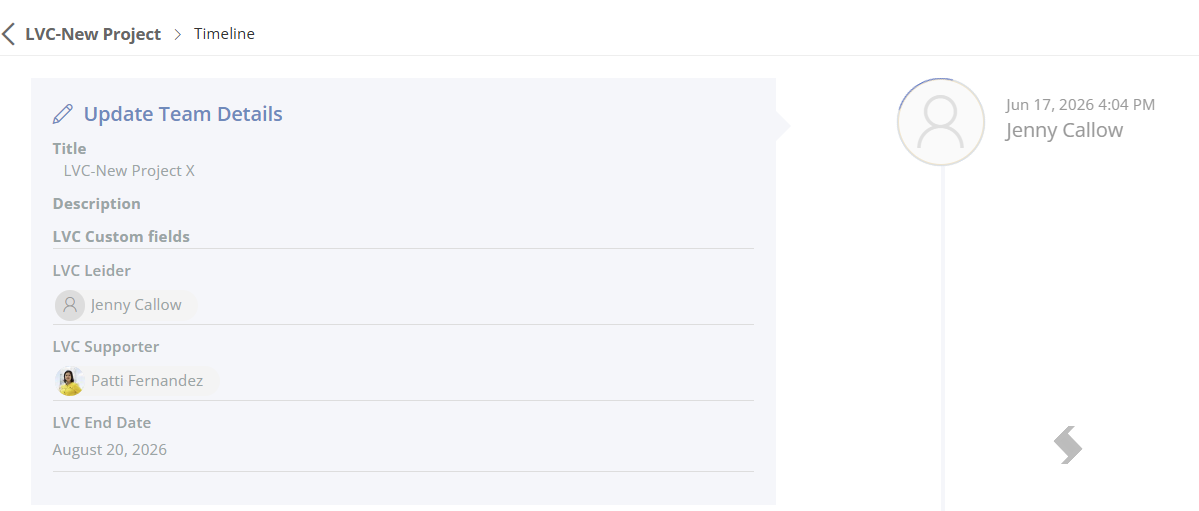
 A solid blue circle = completed
 A solid Red circle = the request has failed.
- Check with the App managers why this has failed in the Job Queue
Other examples of Actions forms:
Change the Lease - Set a new expiry date to extend or reduce

Create a Channel - The templates shown were created so they can be selected:
Add Members to the Team, Group, Site, community, Plan
Add Owner to a Channel