Issue
When customizing fields in Active Directory, such as extensionAttribute2, you may encounter issues where the customized field does not appear in the app for search or other functionalities. This problem often arises because the app needs to be configured to recognize and use the custom field.
Solution
To configure the app to recognize a customized field such as extensionAttribute2, follow these steps:
- Configure the Data Source
- Refer to our Data View Plus Web Part Configuration for initial setup instructions.
- Add and Configure Expanded Property
- Go to the data source settings.
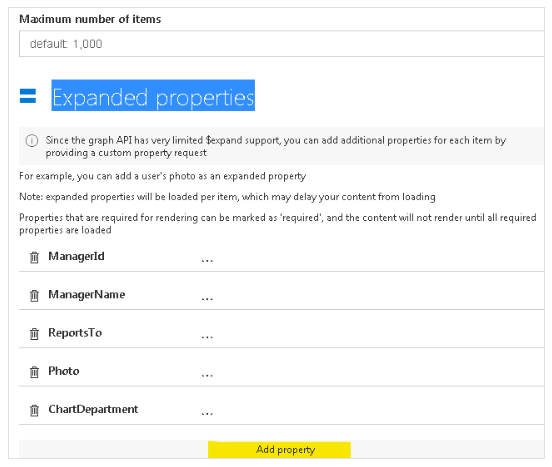
- In the Expanded Properties section, click Add Property.
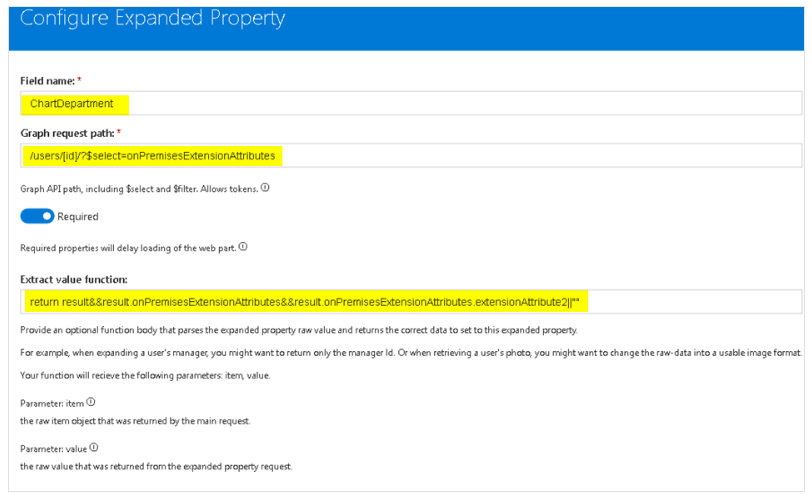
- In the Configure Expanded Property dialog, enter the following settings:
- Field Name:
ChartDepartment - Graph Request Path:
/users/[id]/?$select=onPremisesExtensionAttributes - Extract Value Function:
return result && result.onPremisesExtensionAttributes && result.onPremisesExtensionAttributes.extensionAttribute2 || ""
- Republish the the web part to apply the changes.
- Verify Property Mapping- After completing the above steps, you should see
ChartDepartment in the property mappings dropdown.
Troubleshooting
- If the custom field still does not appear, double-check the
Graph Request Path and Extract Value Function for any typos or incorrect settings. - Ensure that the custom field data is correctly populated in Active Directory and that the app has the necessary permissions to access this data.