After you have purchased your KWIZ add-on, you can activate your installed version.
1. Open SharePoint Central Admin.
2. On the main Central Administration page, click the KWizCom Features Administration link
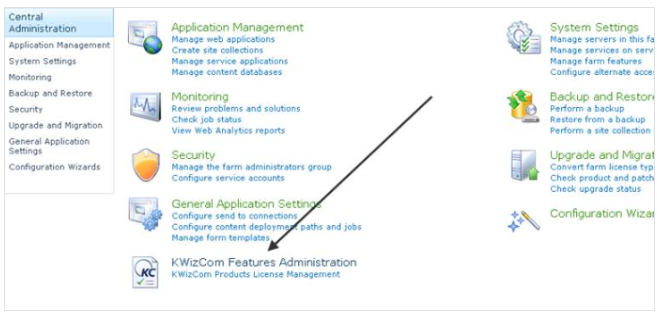
3. Click Manage License link. You will be redirected to a page that allows you to manage all your installed KWIZ products’ licenses:
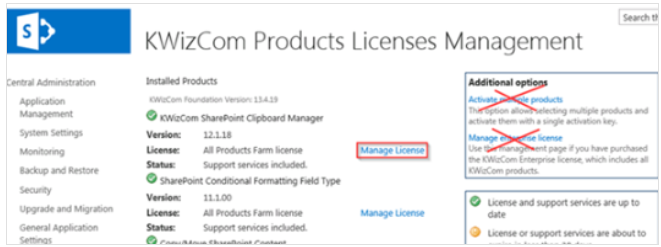
4. Click Copy to clipboard to copy the product code you want to activate or you can copy the code manually in your text editor
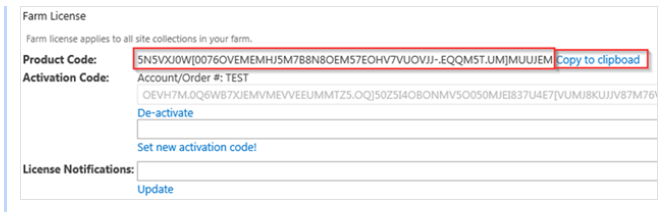
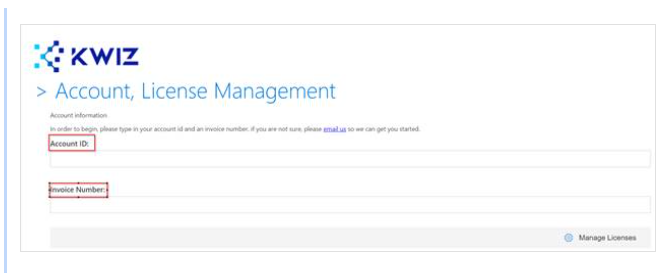
5. Once you have your Product code(s), go to KWIZ Account, License Management KWIZ Account, License Management
6. Enter the Account ID and the Invoice Number and click Manage Licenses.
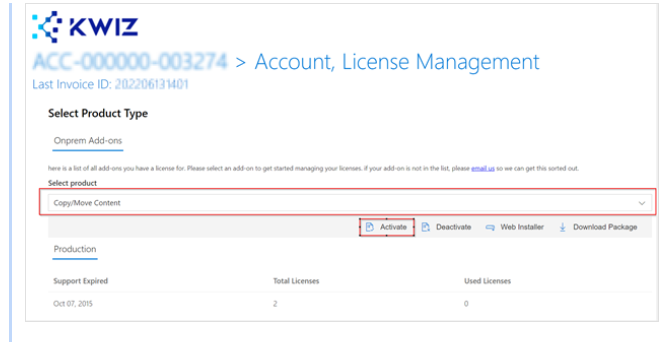
7. Select the product you want to activate from a drop down menu, and click on Activate button
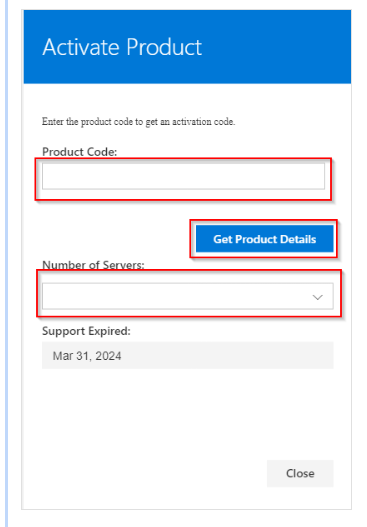
8. Enter your product codes into the Product codes field and click on Get Product Details. If you would like to activate more than 1 WFE server, select the amount of servers in the Number of Servers drop down menu.
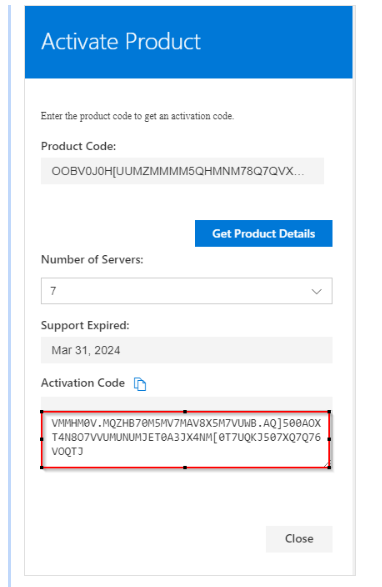
9. Copy the Activation code(s)
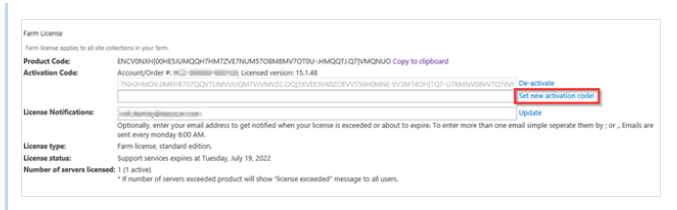
10. Paste the activation code within the KWIZ Product License page => Manage License of your add-ons and click Set new activation code
If you have any questions, please contact us at support@kwizcom.com
That’s it! Your product is now fully activated
Watch the following video for a step-by-step activation guide of KWIZ add-ons on SharePoint:
https://youtu.be/2mRLQNOwAms?si=W86mz4bAxXrlHCq4