Steps to Switch:
1. Access Site Contents:
- Navigate to the Site Contents page within your site that currently uses KWIZ Classic features.
2. Remove Classic Apps:
- Uninstall the Classic App(s) from Site Contents.
- Do Not remove the following:
-
- Apps Foundation
- Modern Apps Package
- Print App
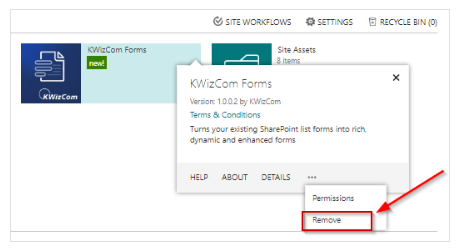
Removing the Classic App(s) will ensure that only KWIZ Apps are displayed in the list(s) within your site.

3. View KWIZ Apps:
- After removing the Classic App(s), your lists will only display KWIZ Apps in the ribbon. You can now configure your installed apps from this section.

4. Activate Modern Forms:
- Click the KWIZ Apps button in the ribbon to enable Modern Forms within your list.
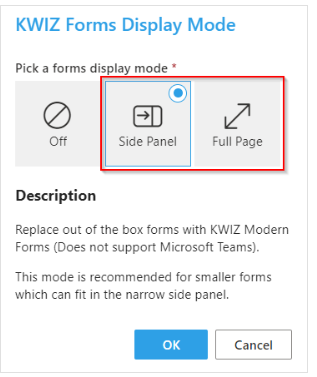
- By default, the KWIZ display mode is set to Off, meaning you will initially see the standard SharePoint list forms.
- To activate the KWIZ Forms feature in your list, click the KWIZ Forms Display Mode button.

- Now you can select either Side Panel or Full Page for the display mode.
For more information, please refer to Configuring features in your list