How to Remove a Lease from a Service Definition
During the lifecycle of your workspaces, the date of expiry may need to change or may also need to be removed completely. Simply changing impose a Lease in the Service Definition will not affect existing workspaces, only new ones. Follow the process below to remove a lease from an existing.
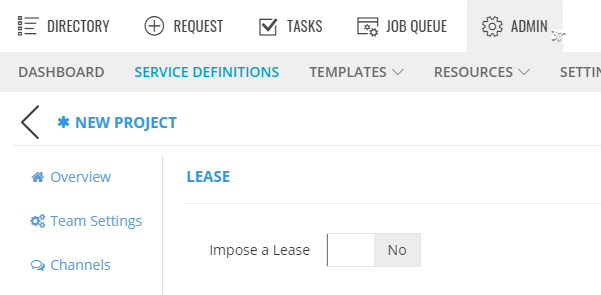
- Go to Admin > Service Definition > Lease
- Toggle 'Impose a Lease' to No
Go to Actions > Expiry and enable the 'Reapply Lease' (additional permissions may be required, by default this will be visible to owners only)
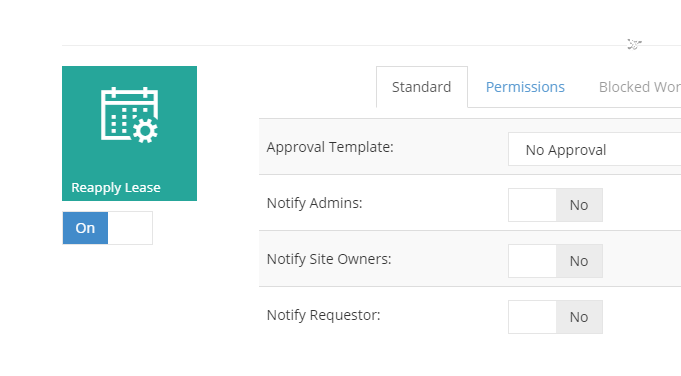
-
- Make the Service Definition Inactive, this will prevent new workspaces from being created with no lease applied.
- Save the Service Definition
- Go to the Directory and locate the workspace to remove the lease from, then click Info > Actions
- Run the 'Reapply Lease' Action
A summary will display what will happen by selecting this option.
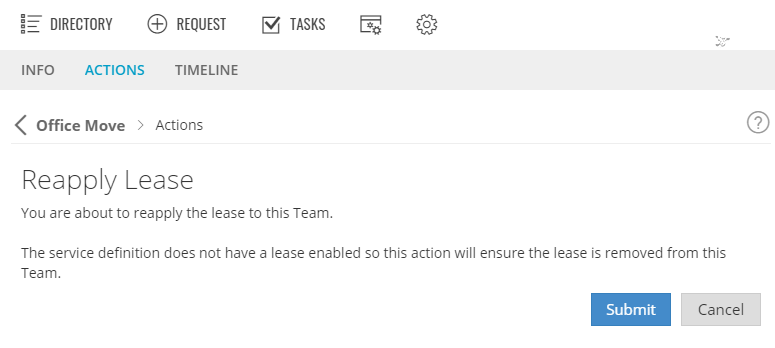
- Click Submit
- Go back into your Service Definition
- Enable the Lease, all previous configurations will be restored.
- Activate the Service Definition
- Save the Service Definition
NOTE: This Action can also be used to apply a lease to a workspace that currently does not have one or update changes made to the Lease settings in the Service Definition.
If you are using the API a bulk application of this Action can be run.