This article provides guidance on troubleshooting and resolving missing fields in forms caused by hidden fields in content types.
Why Does This Happen?
In SharePoint, fields in forms are often tied to the content type of the associated list. If fields are hidden or content type management is disabled, the fields may not appear in the form.
Steps to Resolve Missing Fields
Step 1: Enable Content Type Management
- Navigate to the list where the issue occurs.
- Open List Settings:
-
- Click the gear icon (Settings) in the top-right corner.
- Select List Settings from the dropdown menu.
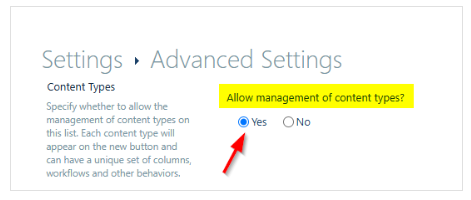
- Under Advanced Settings, locate the Content Types section.
- Set Allow management of content types to Yes.
- Save the settings.
Step 2: Check the Content Type
- On the List Settings page, find the Content Types section.
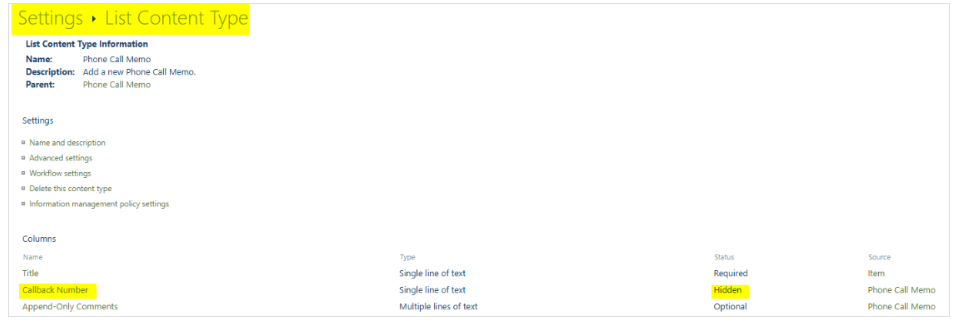
- Click on the content type associated with your items (e.g., Item or a custom content type).
- Review the list of fields within the content type.
Step 3: Update Field Visibility
- Locate the missing field within the content type settings.
- Click on the field name to open its settings.
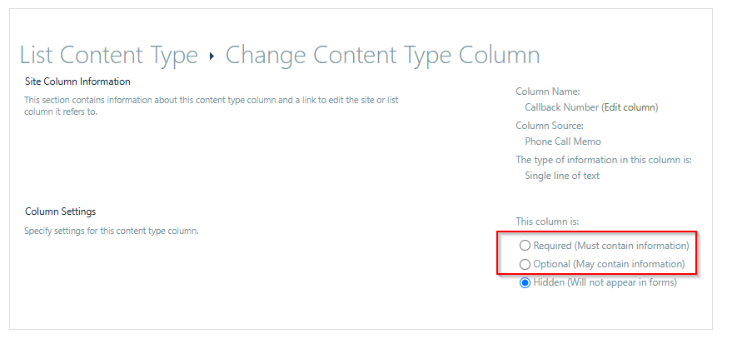
- Under Field Settings, check whether the field is set to Hidden.
- Update the visibility:
-
- Choose Required if the field must contain information.
- Select Optional if the field should display but not be required.
- Save your changes.
Step 4: Verify the Changes
- Return to the list form.
- Confirm that the previously missing field now appears as expected.