The 'Scheduled Runs' views will show a list of all compliance policies that have run.
Overview
Go to Admin > Job Queue > Compliance > Scheduled Runs
From this view you can quickly see how many workspaces are linked to each run, how they were triggered and whether or not there is non-compliance or failures to be investigated.
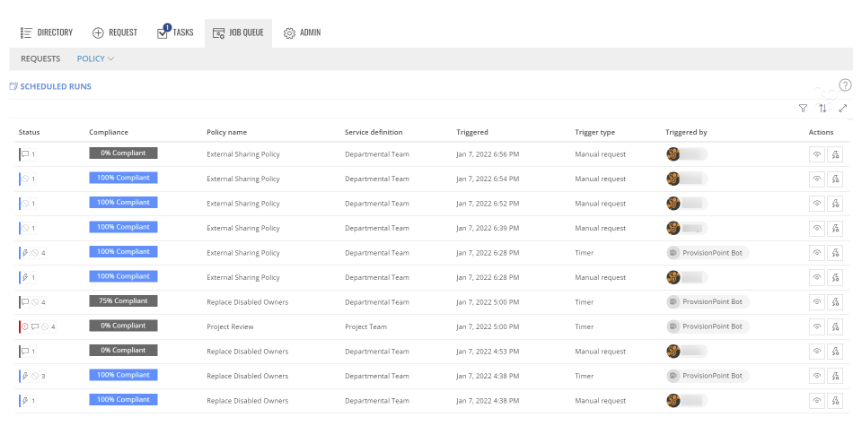
Status & Colour
The status column gives a breakdown of the rules run, whether they made a change or just report and how many workspaces are affected
The color will indicate the status:
- Red failure to run the check and an exclamation mark
- Grey non-compliant
- Blue compliant
|
Icon
|
Status
|
Description
|
|
|
Failure
|
This indicates there are rules that have failed to run and should be checked for the reason why
|
|
|
|
Non-workspace change
|
This indicates either a report or notify rule has been run, it has applied no changes to the workspaces
|
|
|
Workspace change
|
This indicates an action-based rule was run to make a change. Align, remove or replace.
|
|
|
No resolution
|
This highlights the compliant workspaces that required no changes, notifications or reports.
|
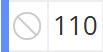 |
The number of workspaces checked
|
We will check any workspaces that are created without failure and that are not flagged as deleted
|
If you hover over each icon it will tell you the number of workspaces that are affected
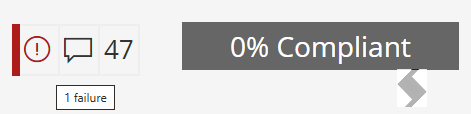
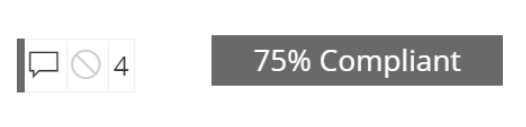
Compliance
The percentage of workspaces that are compliant. In the example below 3/4 of the workspaces are compliant and there were Notify or Report rules
Actions
The actions will allow you to view the summary of the policy run or go straight to the policy checks for each individual workspace's results.
The policy checks view will be automatically filtered and can have further filters to show non-compliant only.
The View action will show a summary of the compliance history and which rulesets and rules were run.
Expand to learn more
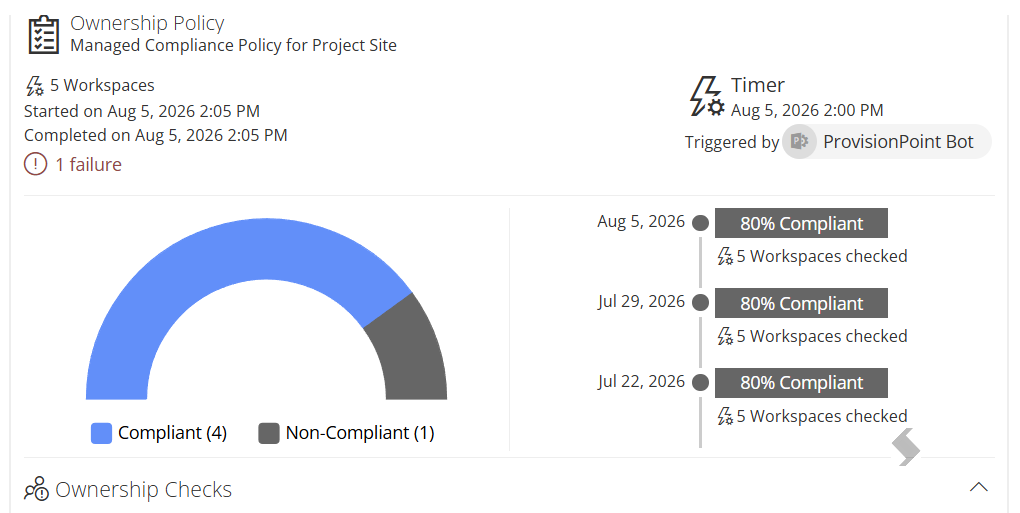
- The last 3 runs
- Progress if still working through the check
- Each rule and its status
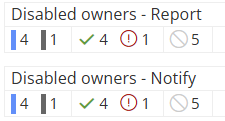
Again the colours a numbers tell us out of the 5 in this scheduled run, 5 were compliant and 1 failed so is also flagged as non compliant.
The Actions determine where to go next
Back to the Scheduled runs view or into the policy checks to review the failed/non compliant items
The Policy checks for the Policy action view will be filtered to show only the workspaces that were linked to the Policy
Expand to learn more
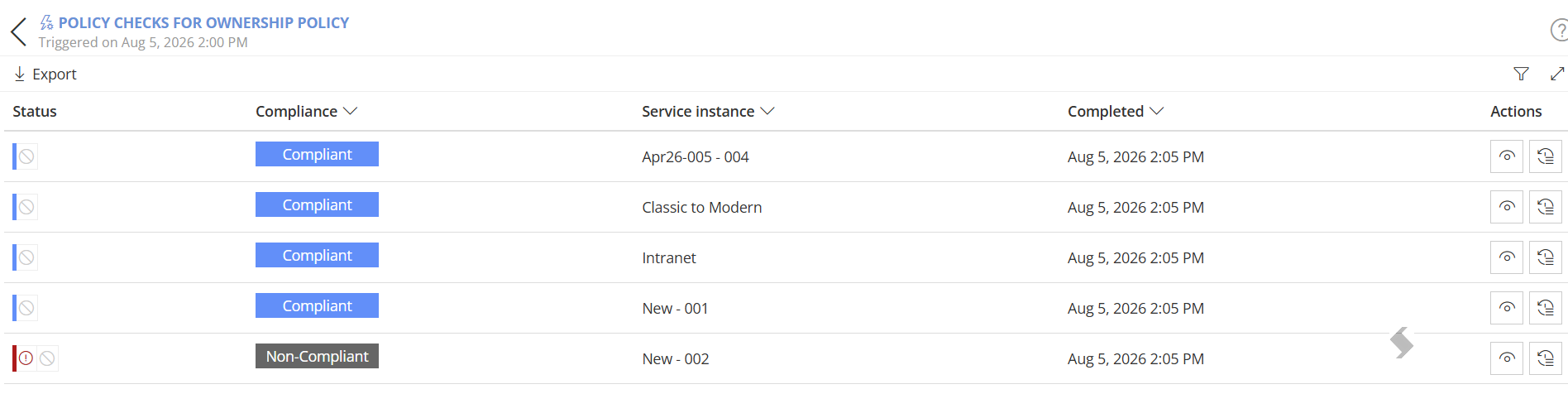
The Policy Checks allow you to review any failed or non-compliant results.
- Use the filters if you have a larger volume of results
- Use the Actions to investigate further:
- View to see which rules have failed or are non compliant for the item.
In the example below we can see non compliance for an expiry policy checking for inactivity in Teams and the SharePoint Site associated
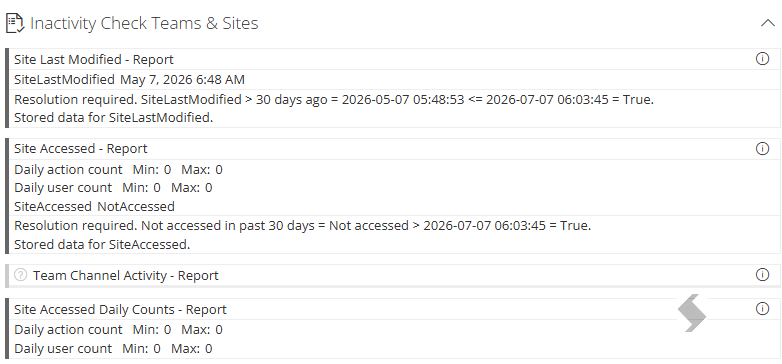
- Selecting the info icon will display additional data
- We can see that the Site has not be accessed in the last 30 days and was last modified in May. This can flag if the Site is still required or not
- Failures are often due to being unable to collect data from Microsoft or a validation against setup. Below we can see that the data was not collected for the Site Accessed report

- Log to look at the trace log to see what happened and more errors details. This is a good resource for any failed items.
This shows us there was an access denied error

- Some errors may be due to
- Additional permissions being required - for example Teams activity
- Incorrect license available - Inactive Guests rules
The Policy Checks for each item can be accessed via the Compliance > Policy Checks menu. This will have no filters allowing you to filter by date and non-compliance to help streamline the results.
Export to CSV
The scheduled runs or policy checks can be filtered or ordered and then exported to CSV. The Id can be used with our API to extract information.
Filters & Sort
Apply filters to review the recent runs
- Scheduled Runs
- Policy name
- Service Definition
- Triggered date
- Trigger type
- Policy Checks
- Compliance
- Service instance (name or title)
- Completed Date & time