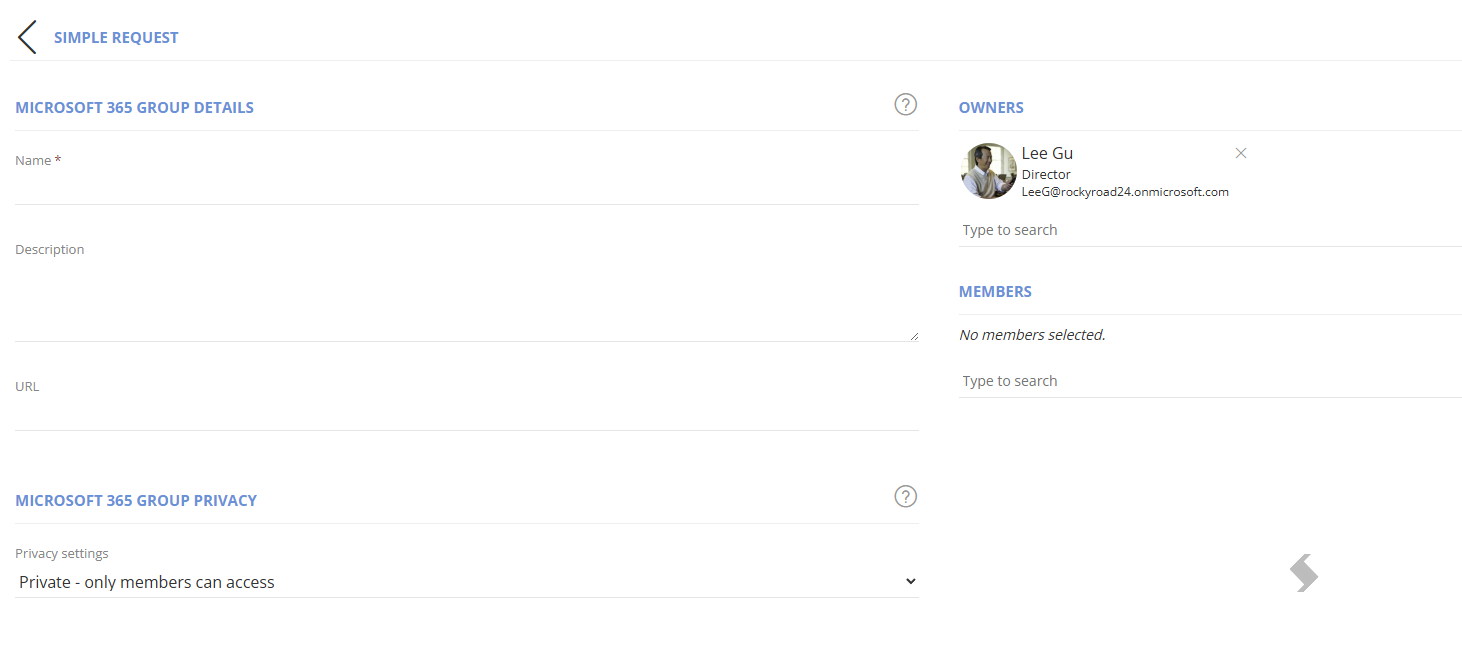
Each Service Definition has its own default request form, this will contain the following fields:
- Name ( also know as Title)
- Description
- URL
- Privacy Settings (if Group connected)
- Owners
- Members
Updating the options in a Service definition will allow you to add additional elements:
To assist the requestors who will fill in the forms there are other options that can be defined from the Requests tab in the Service Definition, this article will focus on these.
-
Change the Name / Title options
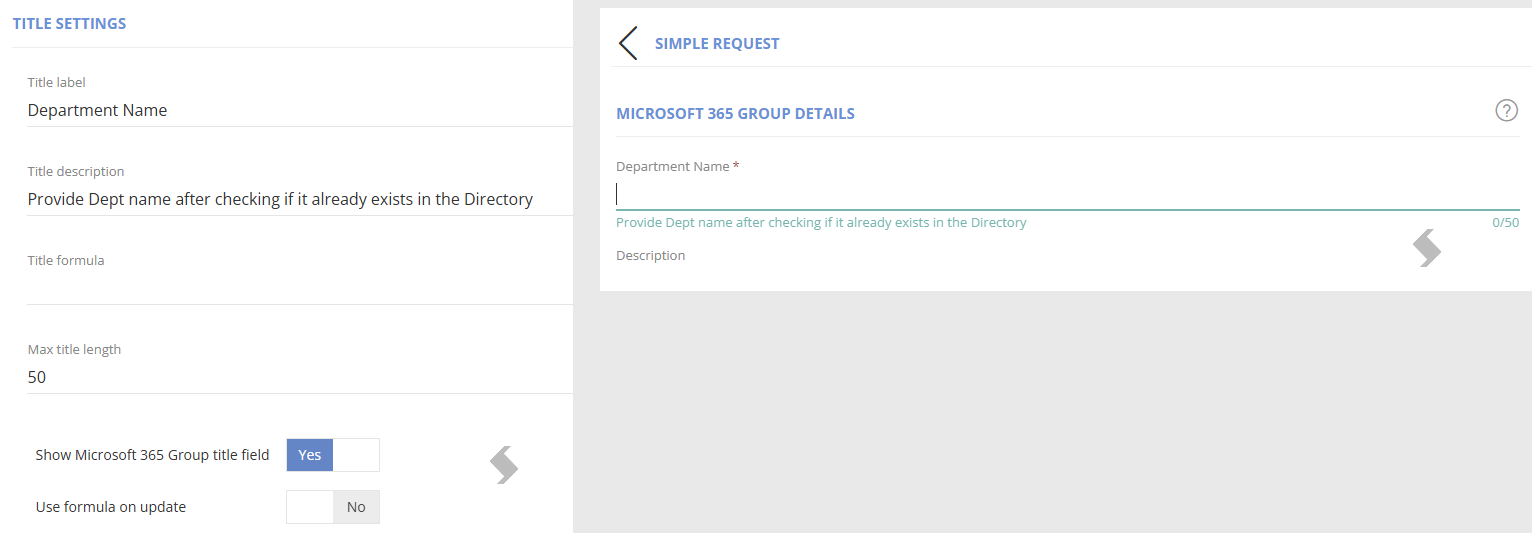
Below are the options available for title and what they do:
- Title label - A different name can be set for the Title field for each Service Definition.
- Title description - Change the description displayed under the field to guide the requestors
- Max title length - Set a character limit to prevent long names being used
- Title Formula - This will define the naming convention used for the Name of your workspace. More information can be found in [insert link to article]
- Hide the Title Field - Remove the name / Title field entirely. A naming convention must be used if this is removed.
- Use formula on update - If there is a naming convention and the update details action is used, it will apply the naming convention.
For example, if a project Service Definition is created it could ask for 'Project Name' or a Department name could be asked for.
-
Description Field Changes
-
Add a User Agreement - This will prevent the request being submitted until the user agrees to the agreement details provided.
A user agreement can be added to each Service Definition to make sure your requestors are aware of their responsibility to the workspace before they create it.
Define the 'Agreement label' and 'Agreement details' that will be visible to the requestors on the request form.
The 'Request' button is greyed out until the requested confirms.

-
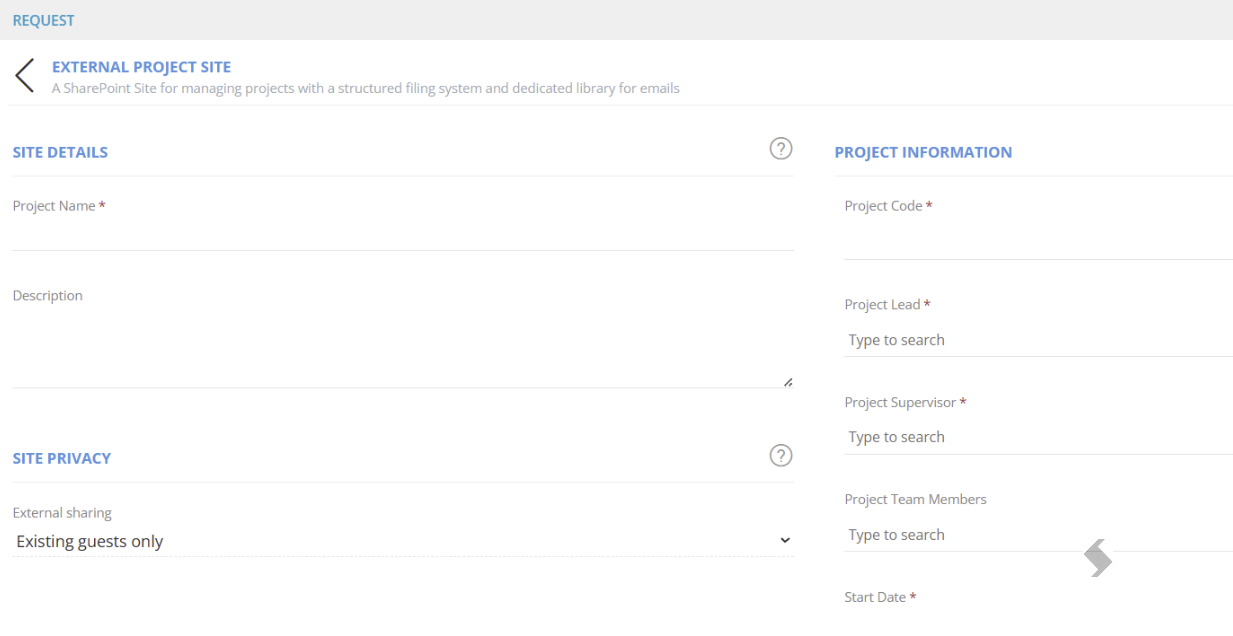
Add Additional Metadata
Additional Columns can be added to help you
- Define naming conventions
- Collect additional data for use in reporting, for example business unit
- Set start or expiry dates
- Define who approvers are
- Add values to Site Column defaults via PnP templates
- and much more...
The additional metadata can be added via Columns and Forms in Admin > Templates and is completely customisable.
You can have the same form for all requests or unique forms where needed, for example in Projects.
Follow the steps in [Inset article] to find out more about the options available