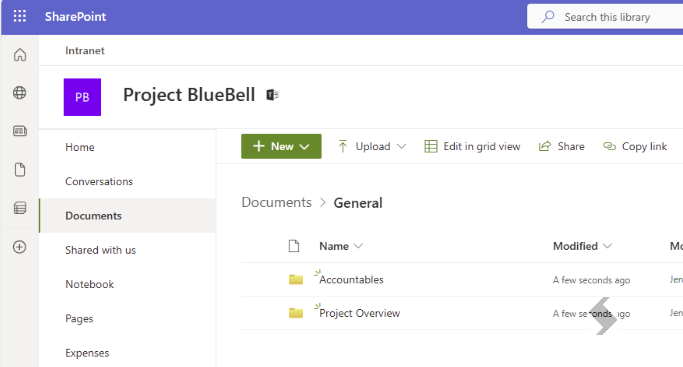
When configuring Lists in ProvisionPoint you can also define changes to the standard Document Library shown in Teams or SharePoint.
This includes the following features:
- Versioning & version limits
- Sync and apply content types from the content type hub
- Add folders
- Set a default Sensitivity Label
- Set a default Retention Label
Go to the Lists tab within a Service Definition.
- Click on + New List
- Enter "Documents" as the Display name, to match SharePoint
- Under Url, enter "Shared Documents"
- Set the List type to Document library
- Choose if the Library should be shown on the navigation (quick launch) = 1 = Yes, 0 = No
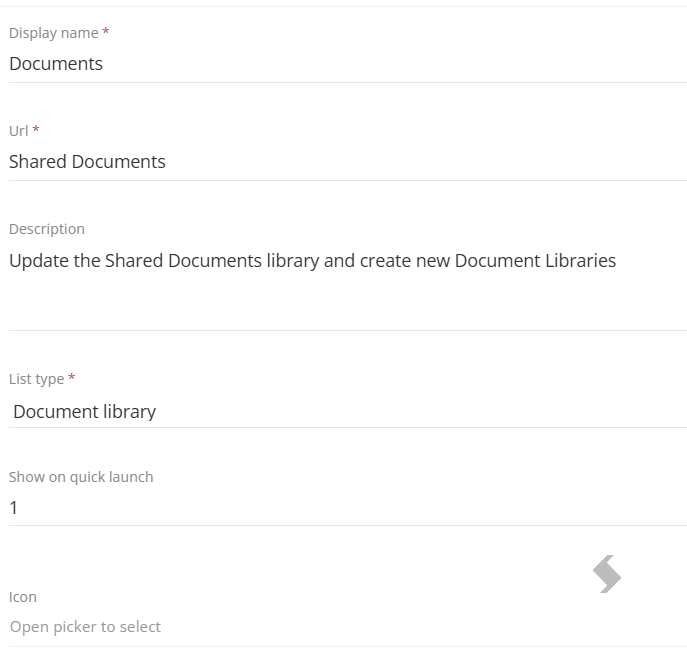
- Continue to configure the rest of the settings as required, including:
- Enabling versioning & Set the major version limit.
- Syncing content types from the content gallery - Content Types & Sync to Document Libraries
- Applying a sensitivity label - Apply Sensitivity Labels using Service Definitions
- Applying a retention label - Apply Retention Labels using Service Definitions
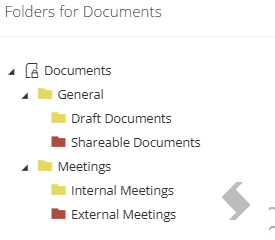
- Folders
- If the folders need to appear within the default Teams channels you must add the channel name as the first folder
For example, The Team will create 2 channels 'General' & 'Meetings'
- Save the configuration, and then Save the Service Definition
The changes made to the Documents library will only apply to new workspaces provisioned from when the changes are saved.
Language Variations
Please note if your environment language is not English the List name and URL will need to be written in that language.
Below are some of the translations that may be required. This can be checked when you navigate to the Site or with PowerShell to extract the name and URL.
- Dutch
- Name = Documenten
- URL = Gedeelde documenten
- German
- Name = Dokumente
- URL = Freigegebene Dokumente
Results in Microsoft