If you have configured notification emails to be sent from ProvisionPoint, but they are not getting through.
This guide will give you some checks to make and we hope will resolve your issue:
Check Notifications are Enabled
If notifications are NOT enabled in the Service Definition, emails will NOT be sent for Approvals, Actions, Creation or Lifecycle for workspaces linked to the Service Definition.
Ensure the Notifications are enabled and there is a Notification template selected.
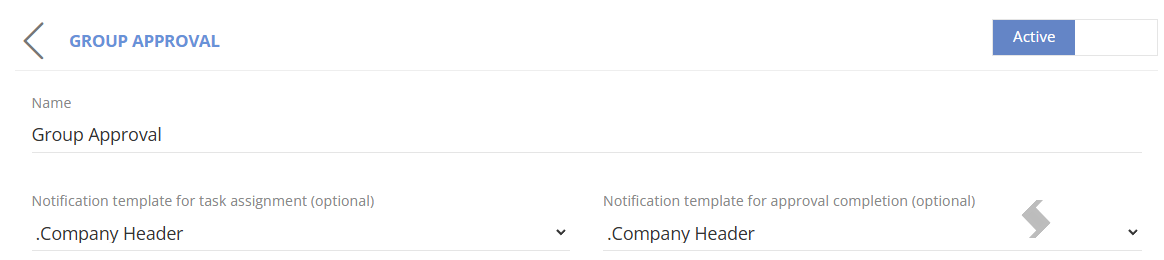
Also check the emails and which notifications are being sent and who to.
- Lifecycle Actions completed = Lifecycle Stages > Action mapping
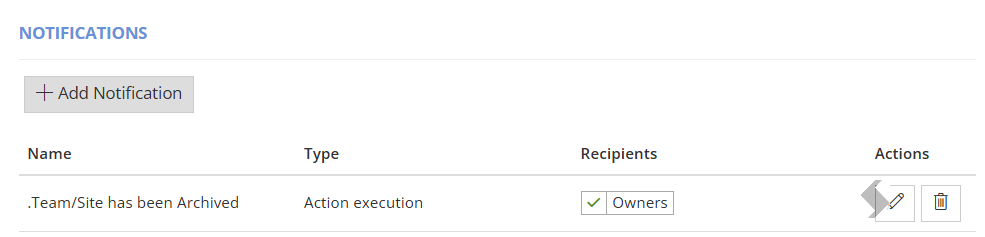
- Lifecycle Reminders = Lifecycle Policy > Stage mapping
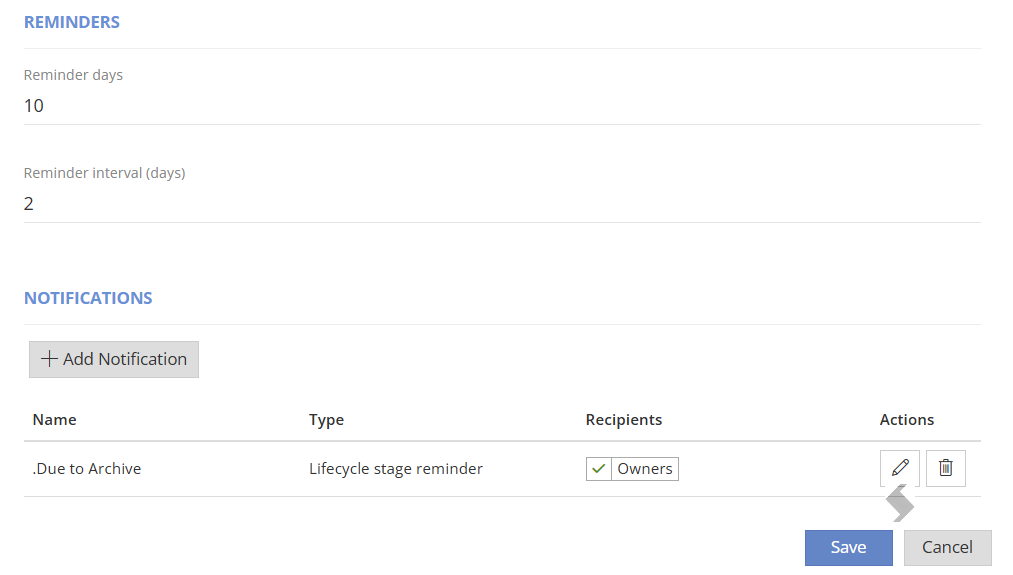
- Approval = Approval templates
Has the email been blocked?
If using Proofpoint or other applications to manage or block spam emails, please allow our domain and IP address through the firewall:
- IP: 212.146.253.4, 141.193.213.10 and 149.72.59.7
- default email address: no-reply@appmail.provisionpoint.com or no-reply@provisionpoint.com
Which Notification Provider is in use?
As an App Manager,
- Go to Admin > Settings > App Settings
- Scroll down to the Notification Provider section
- Check the options here
- If you are using the default provider, you must use the default domain of appmail.provisionpoint.com or provisionpoint.com.
- If you have used your own domain this can get blocked.
- Use an alternative notification provider for your emails
- If you have your own subscription with Brevo (SendinBlue) or Send Grid, you can use your own domain,
- Check the API link between your accounts is still working
- Check the email is in the senders list
- If you are using M365 Mail, you can use your own domain and Graph endpoints
- Check the App Registration has the correct Mail.Send Permissions
- Check the Admin > Settings > AAD App is still linked to the app registration
- Check the Certificate is active and has not expired
- Check the Certificate is in the app Registration
- If you are using SMTP, you can use your own domain
- Check all details are correct
Who has the Approval Email been sent to?
If a request variable or lookup to define the approver, confirm they have been assigned correctly.
App Managers can also check the Dashboard tab for pending approvals and find all outstanding requests:
NOTE: If the approver cannot be found it will default to the App Manager group for ProvisionPoint
-
- Go to Directory > View details on the workspace in question
- Go into the Timeline and click 'View Approval Process'
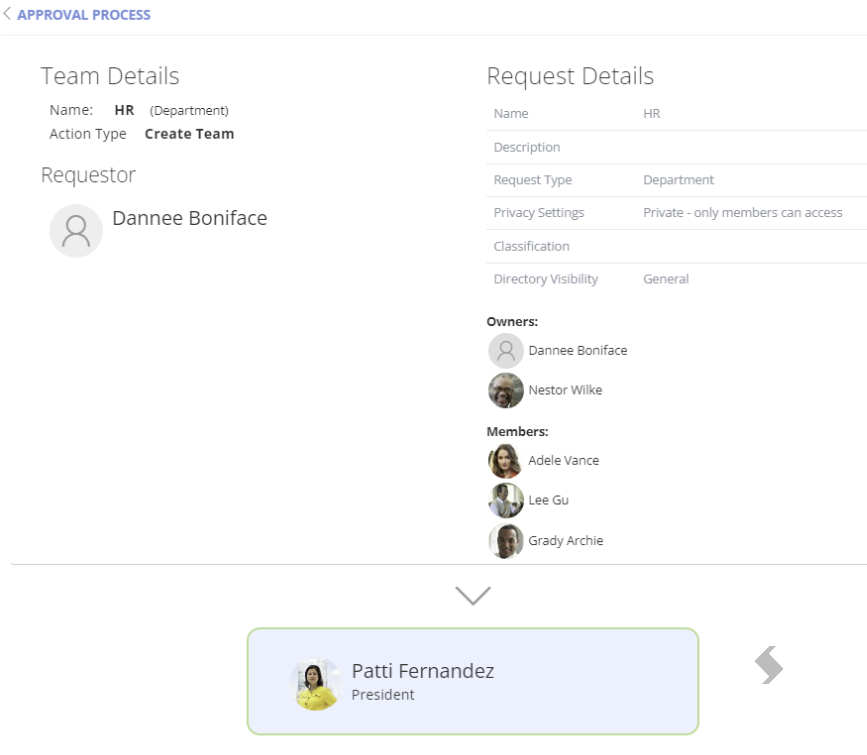
- Check the approval has been sent to the correct person
If you are still unable to find a cause, reach out to support via a ticket, we will be able to check the default notification provider only.