What are Actions?
'Actions' in ProvisionPoint represent changes that can be made to existing workspaces that are managed in our app (created or imported). For example, you may want to change the name or URL of a Site/Team or add an Owner or manage the expiry date of the Team.
Actions are used to make the changes and will update the timeline to provide an audit of who made the request, what was changed and when.
All Actions are disabled by default and must be manually enabled before they can be used
Actions can be enabled or disabled throughout the lifecycle of the workspaces, Permission to run actions can be assigned, by default to the owners with the option to add additional people or AAD groups.
For example, allow owners to manage membership, but only allow admins to delete.
Once enabled, the Actions can be found in the Directory > Info > Actions page of each workspace, but the tab and actions will only be visible if the logged in user has permission to run them.
Below is a list of Actions provided by ProvisionPoint, each Action is grouped in a category:
Expand to see the available Content Actions.
- Update Details
- Change Url
- Create Lists
- Create Planner Plans
- Create Team Channels
- Convert to Group
- Convert to Team
- Sync Directory
- Create Sub Site
- Associate to Hub Site
- Register as Hub Site
Click here to find out more about these actions.
Expand to see the available Security Actions.
- Add Owners
- Remove Owners
- Add Members
- Remove Members
- Add Guest User
- Change Site Security
- Change List Security
Click here to find out more about these actions.
Expand to see the available Advanced Actions.
- Change Storage Quota
- Check Compliance
Expand to see the available Expiry Actions.
- Change Archive State
- Delete Workspace
- Delete from the Directory
- Change the Lease
- Extend Lease
- Reapply Lease
- Set Expiry Rule State
- Restore to Directory (API only)
Expand to see the Privacy Actions.
- Change Privacy
- Change Guest Access
- Change External Sharing
- Change Sensitivity
- Change Classification Label
- Change Directory Visibility
Click here to find out more about these actions.
Expand to see the Channel Actions.
- Add owner to Channel
- Remove owner from Channel
- Add member to Channel
- Remove member from Channel
These actions are for private or shared channel management for Microsoft Teams only.
Click here to find out more about these actions.
If you cannot find the action you need, create your own using Custom Actions.
Who Can Run an Action?
By default, the Service instance owners will be able to view and run Actions, after a workspace has been created.
Permissions can be assigned to named users or groups allowing them to view and run the Actions.
Expand to learn more
Where needed the owners permissions can be removed, allowing only the name people or groups permission to view and run the Action.
To configure the permissions go to Admin > Service Definitions > Actions > Permissions (on the action you would like to allow permissions on).
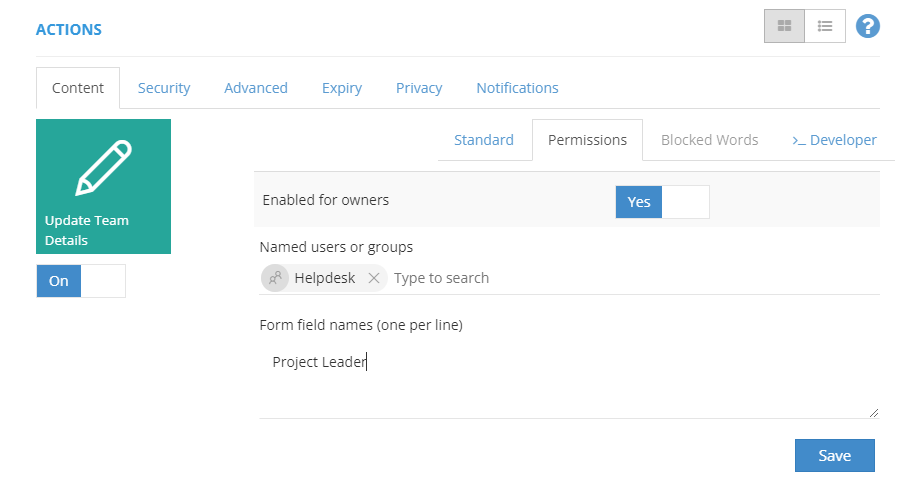
Once in the permissions,
- Add the named users or groups via an AAD lookup
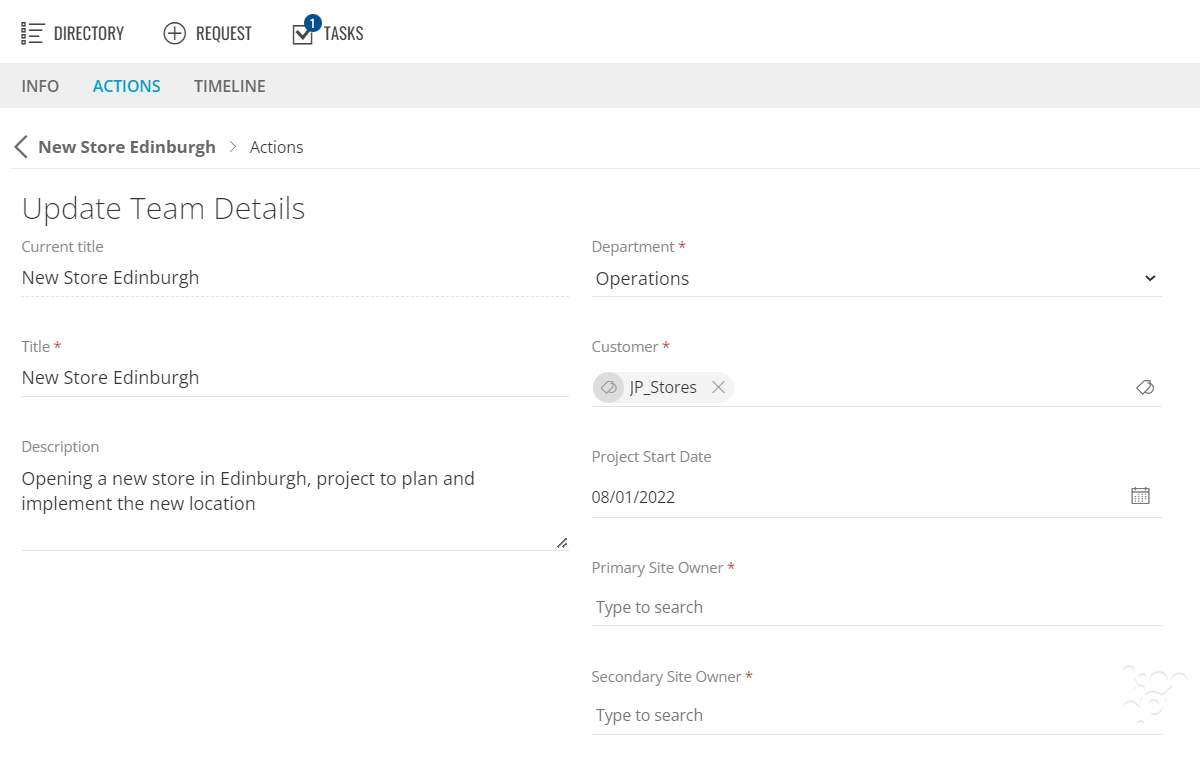
- Apply the named users from the request form field define at creation or via update details actions
- Toggle 'Enabled for Owners' to No to give only the named users and groups permissions.
When everyone who requires permission has been added, save your changes to the Action and then save the Service Definition.
Apply Approvals to Actions
Expand to read more about applying approvals to Actions
Each time an Action is requested you can trigger an approval process to start to ensure it meets your organisation's requirements. Each enabled Action can have its own approval assigned, they do not need to be the same approver for each. An Approval Template defines who will receive the notification and if multiple stages of approval are required, for example, a project owner and the IT Helpdesk. then link the Approval to your Service Definitions. The steps below presume the Approval Template already exists:
- Go to Admin > Service Definitions > Actions
- Select the Approval Template on each Action
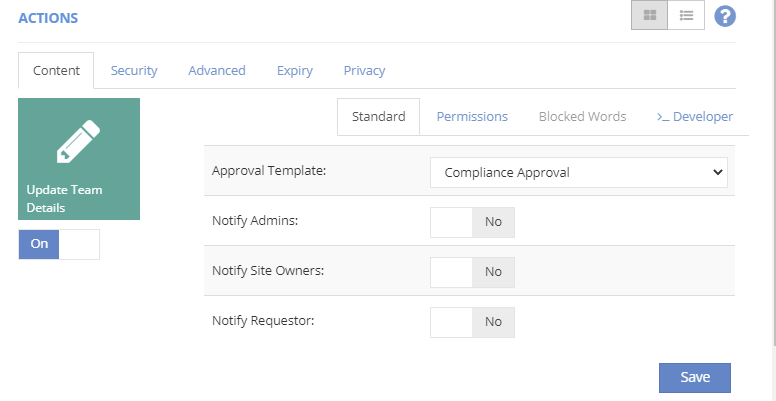
- Click Save
- Repeat for any other Actions
- Save the Service Definition
When the Actions is applied the approval will be sent.
Send Notifications
Expand to read more about sending notifications when an action is successful or fails.
Each Action that is enabled and run can send a notification to advise if it was successful or failed.
The following options are available for the notification:
- Recipients
- Owners
- Requestor
- Service Definition Admin(s)
- Other emails - manually enter email addresses of other people or groups that should receive
- 'System Default' notification or customise your own
- Language translations
- Send the notification via email, Teams or both